Wait for products
Your product list loads from Shopify. Wait until items appear, then continue.
Connecting your store…
Count selected items at one location — from start to finish.
Your product list loads from Shopify. Wait until items appear, then continue.
If you have more than one, pick the location you are counting.
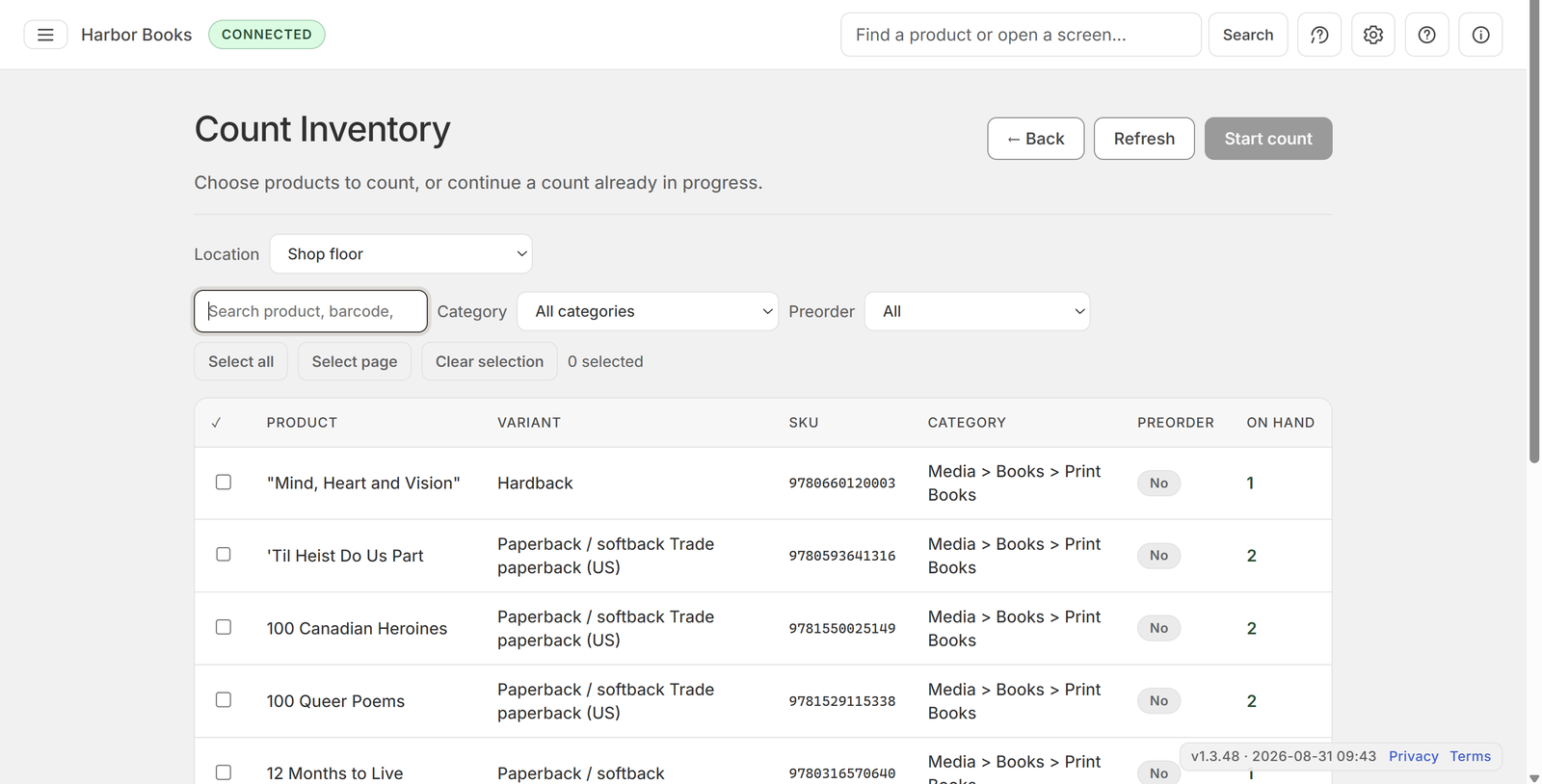
Search or filter, then select the products to count. Choose Start count. This is not a full-store count unless you select everything.
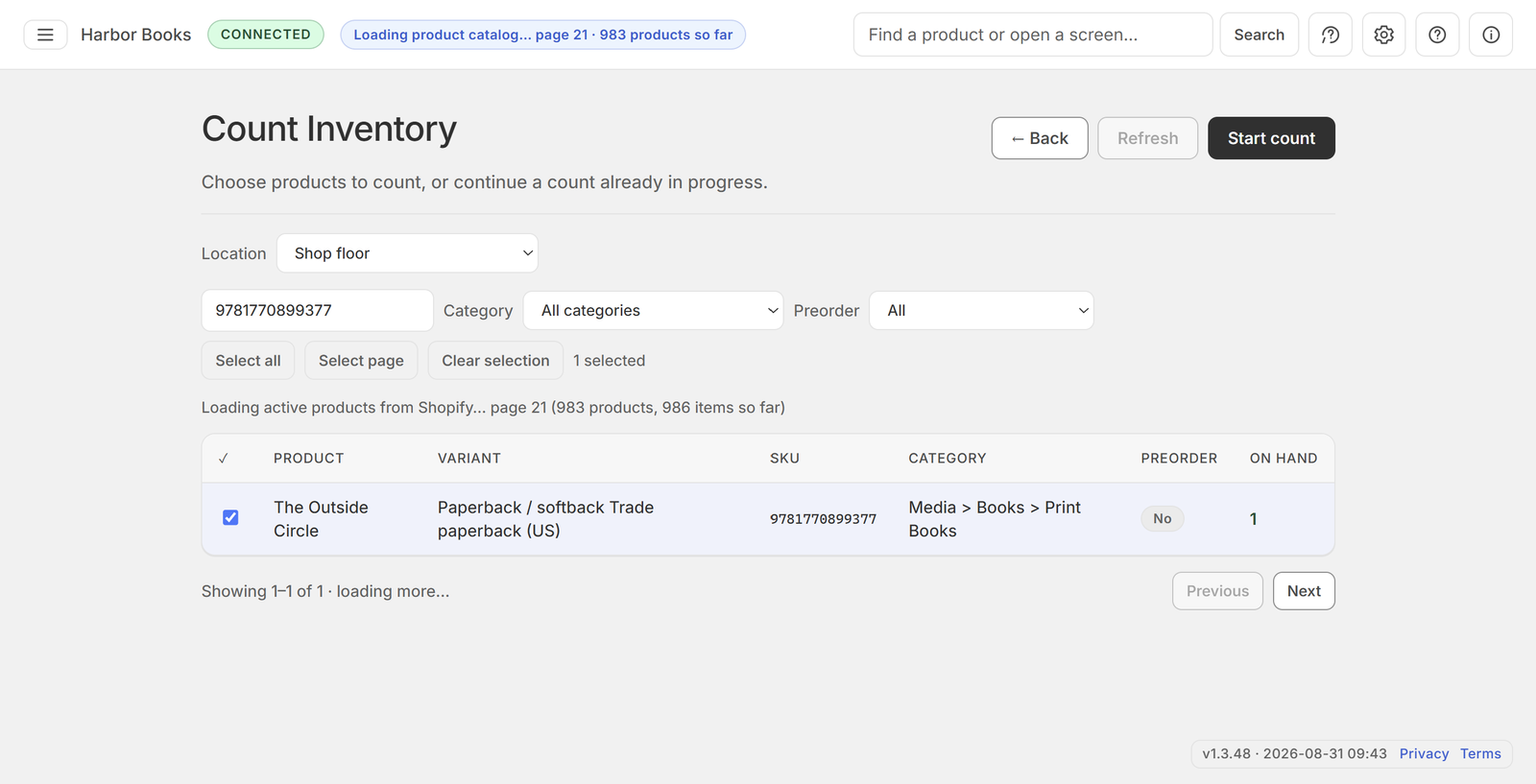
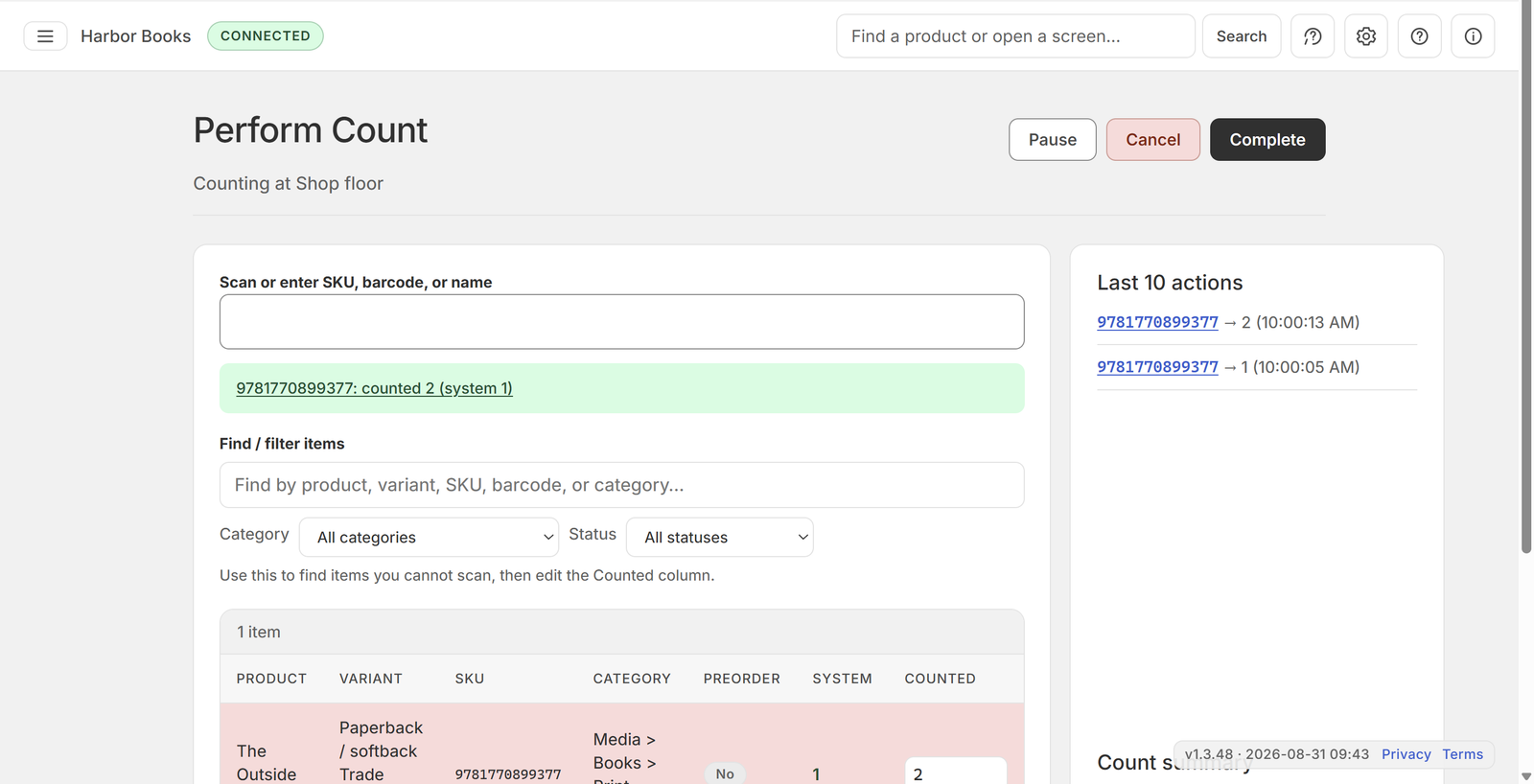
Scan or type an ISBN, SKU, barcode, or name. Keep scanning — the counted quantity updates as you go. You can Pause and resume later.
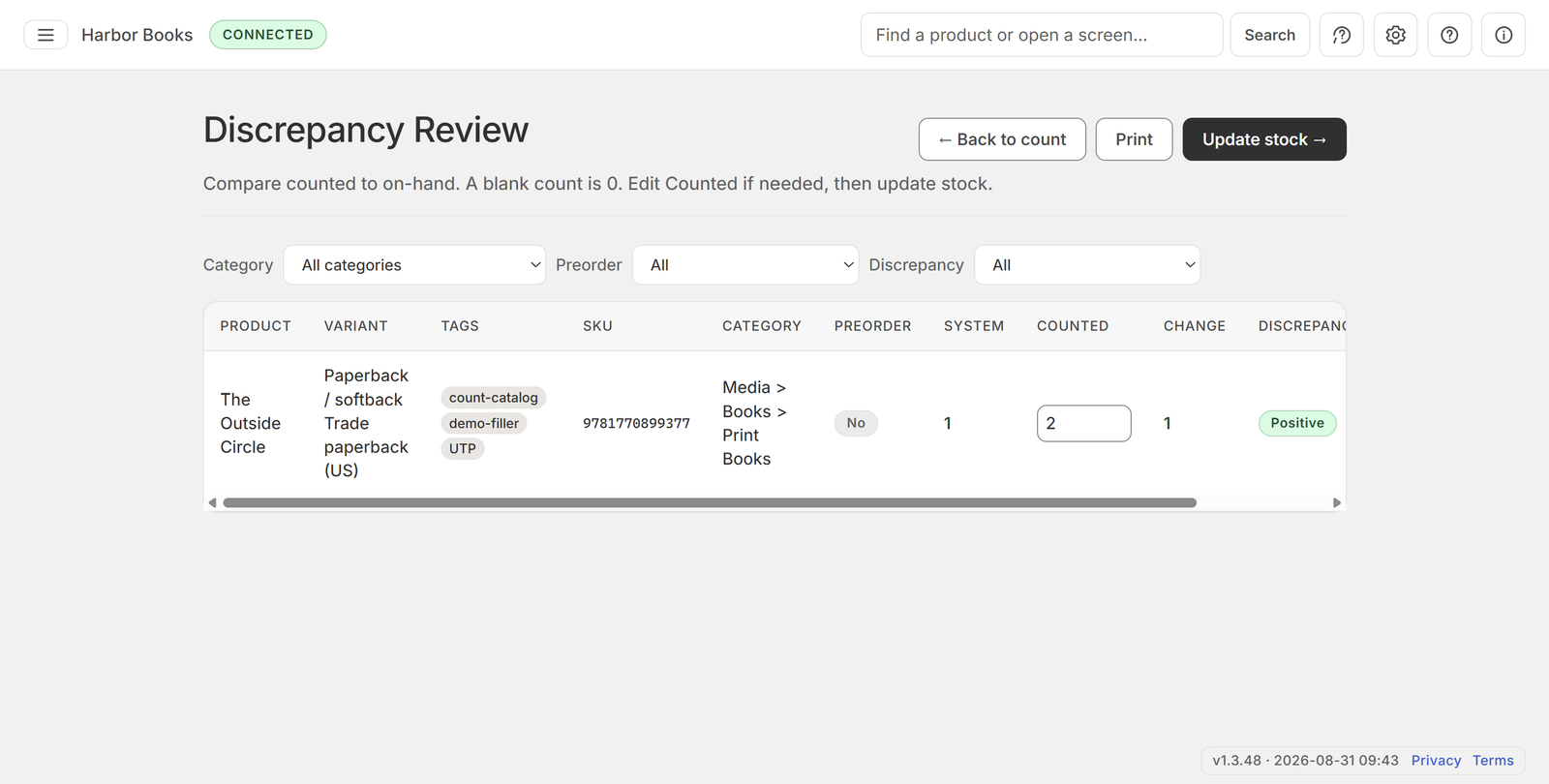
Choose Complete. Check rows that do not match. Fix a quantity if you counted again. Items you did not count stay as they are.
Choose Update stock, then Start updates. Wait until it finishes before you leave.
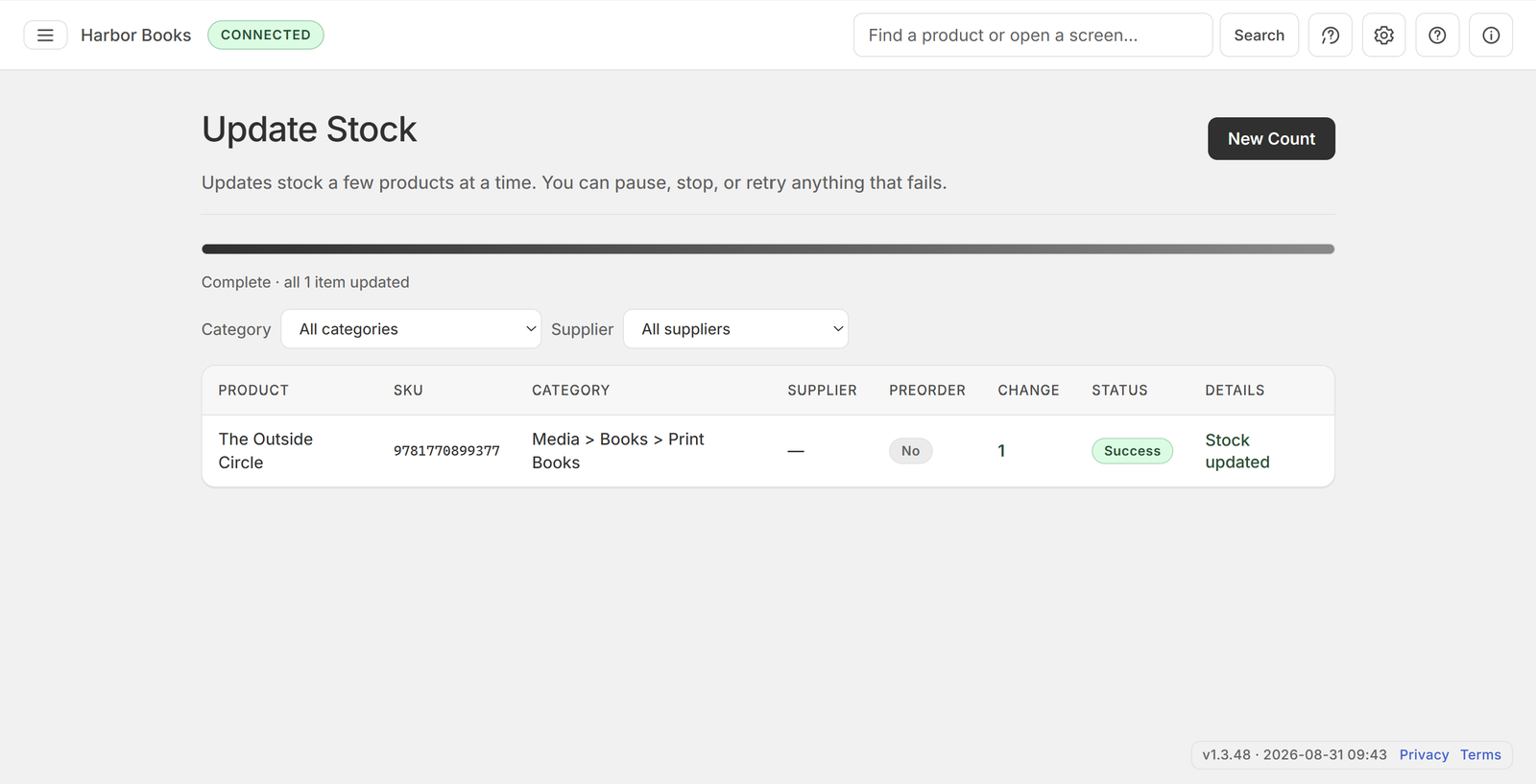
Count selected items at one location — from start to finish.
Your product list loads from Shopify. Wait until items appear, then continue.
If you have more than one, pick the location you are counting.
Search or filter, then select the products to count. Choose Start count. This is not a full-store count unless you select everything.
Scan or type a SKU, barcode, or name. Keep scanning — the counted quantity updates as you go. You can Pause and resume later.
Choose Complete. Check rows that do not match. Fix a quantity if you counted again. Items you did not count stay as they are.
Choose Update stock, then Start updates. Wait until it finishes before you leave.
Receive a location transfer — from start to finish.
This is a location transfer, not a supplier delivery and not a purchase order.
If you have more than one, pick where the transfer arrives. Only transfers arriving there are listed.
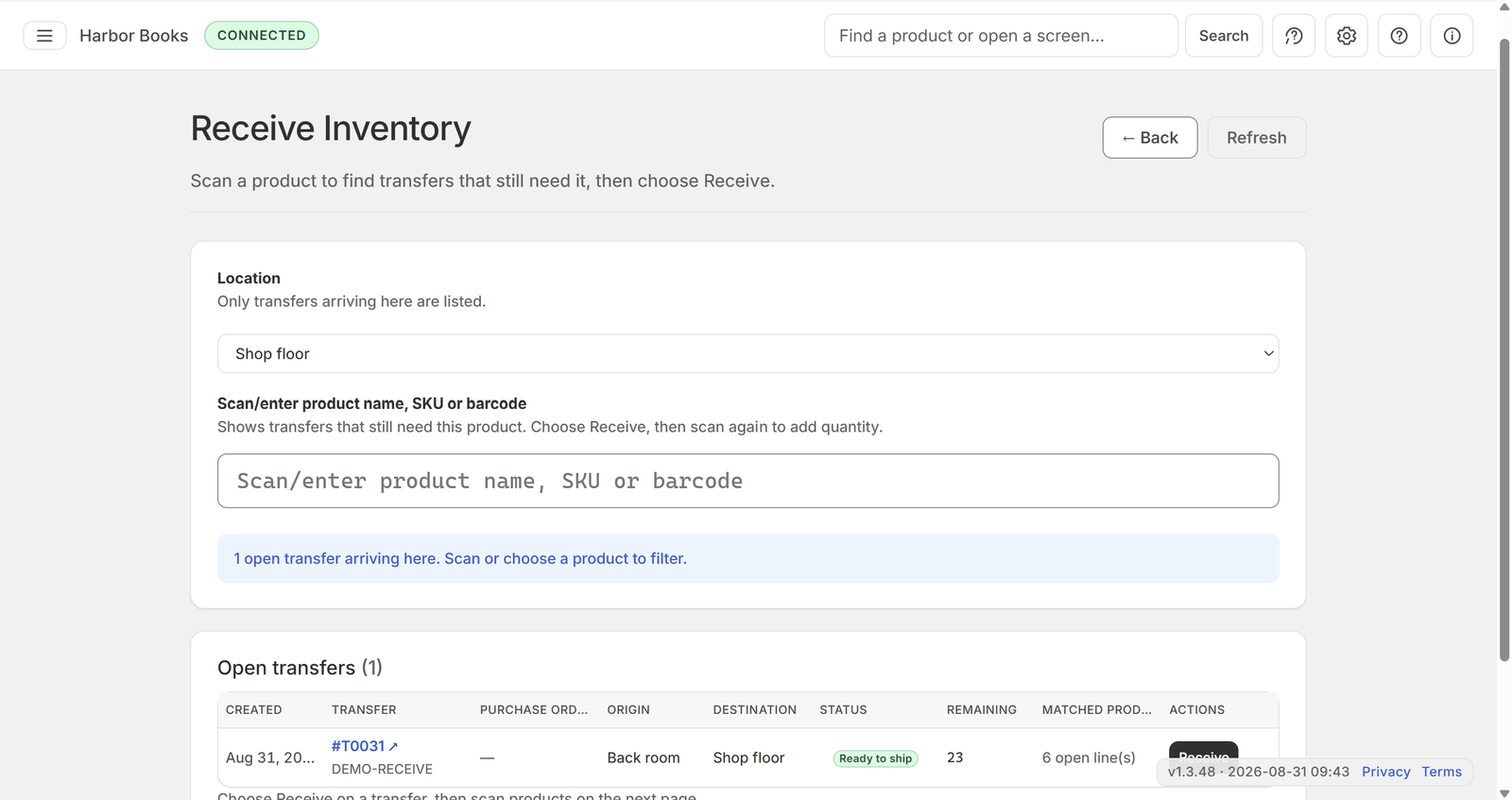
Scan or type a product, SKU, or barcode. Only transfers that still need that product are listed.
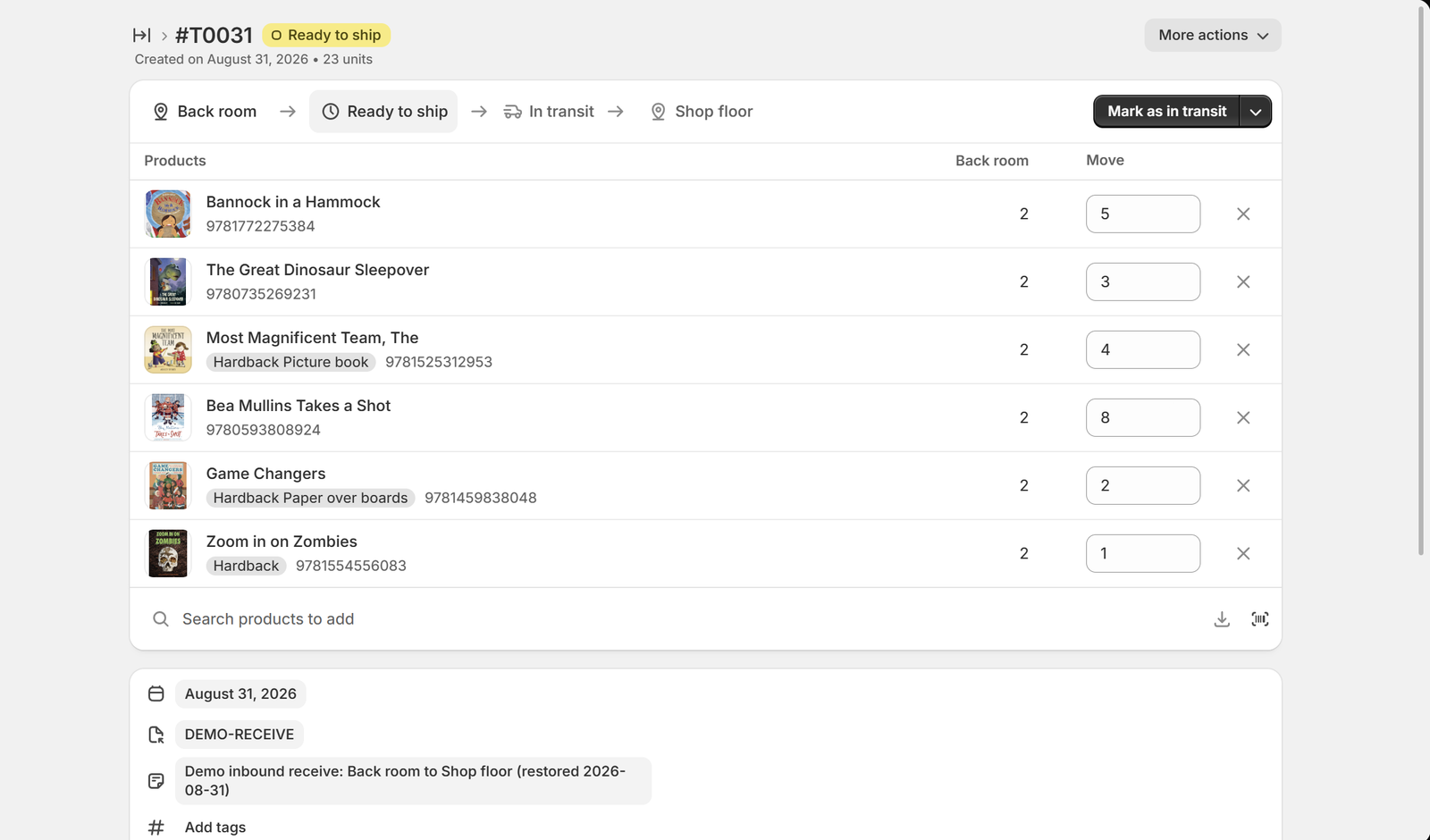
Choose Receive on the transfer you want.
Scan each product as you unpack it to add 1. You can type a quantity. Check received against what was sent.
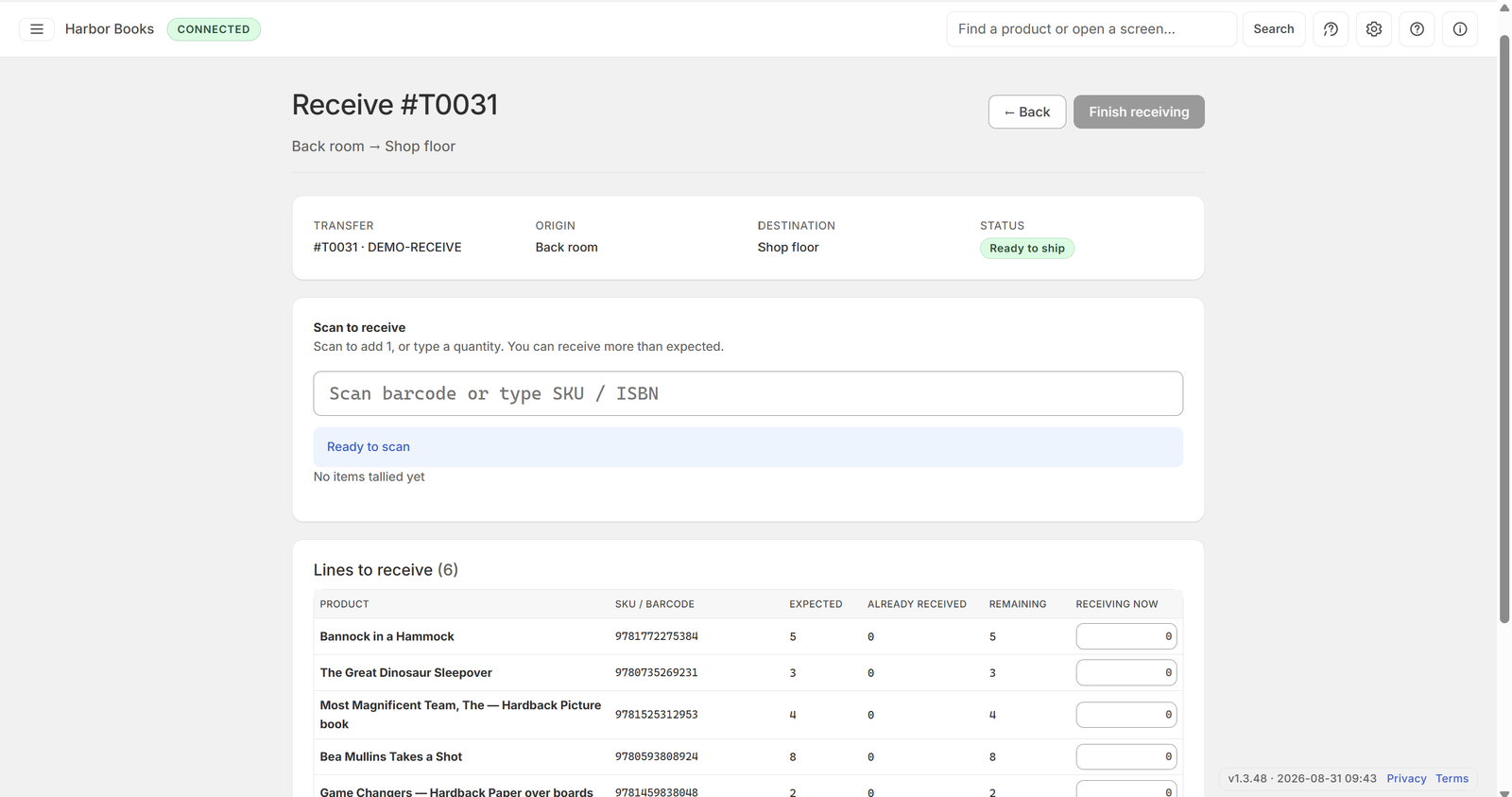
Choose Finish receiving. If you received more than the transfer lists, confirm before you finish.
Change on-hand quantity or cost — from start to finish.
Your product list loads from Shopify. Wait until items appear, then continue.
If you have more than one, pick the location to update. Stock is changed there.
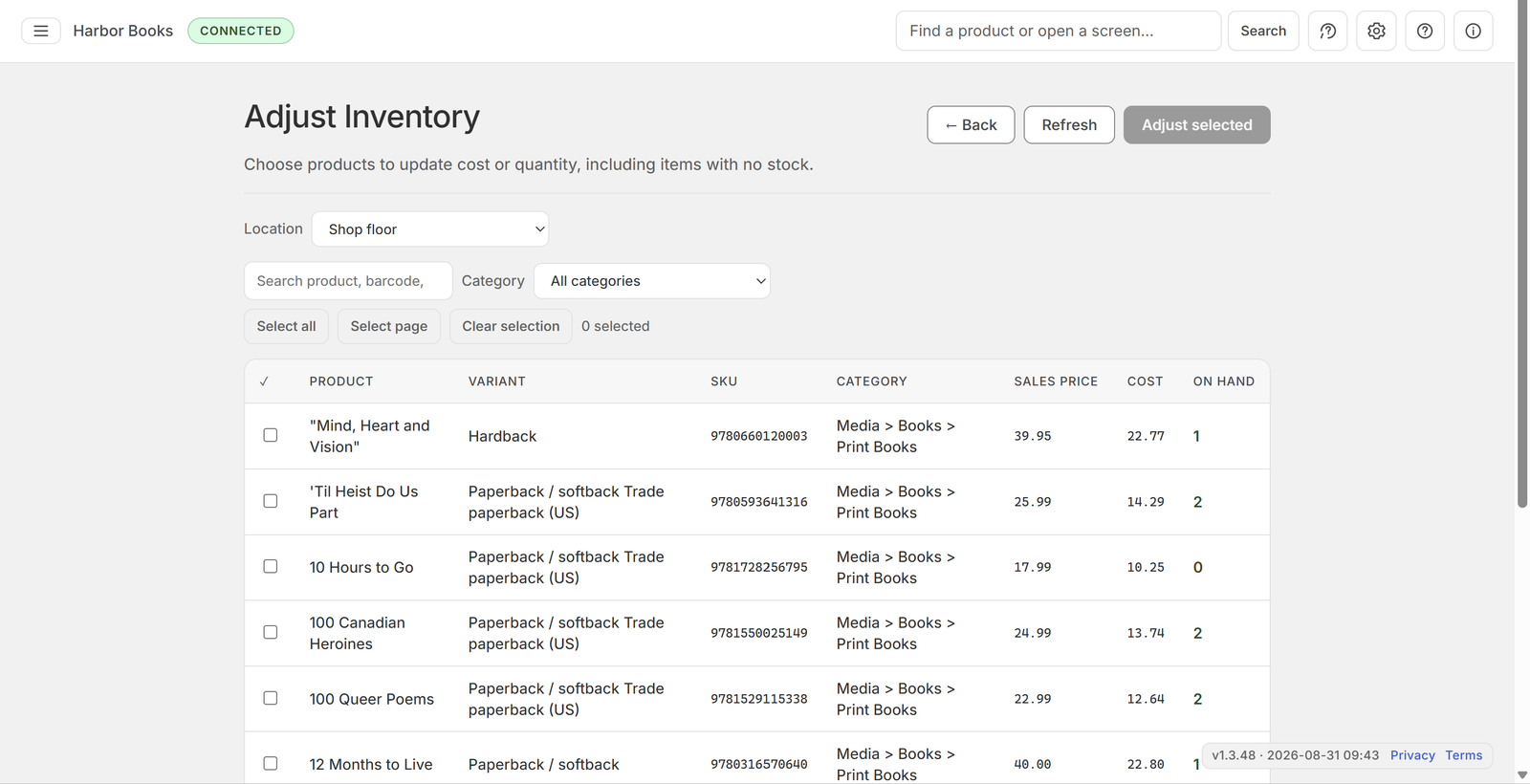
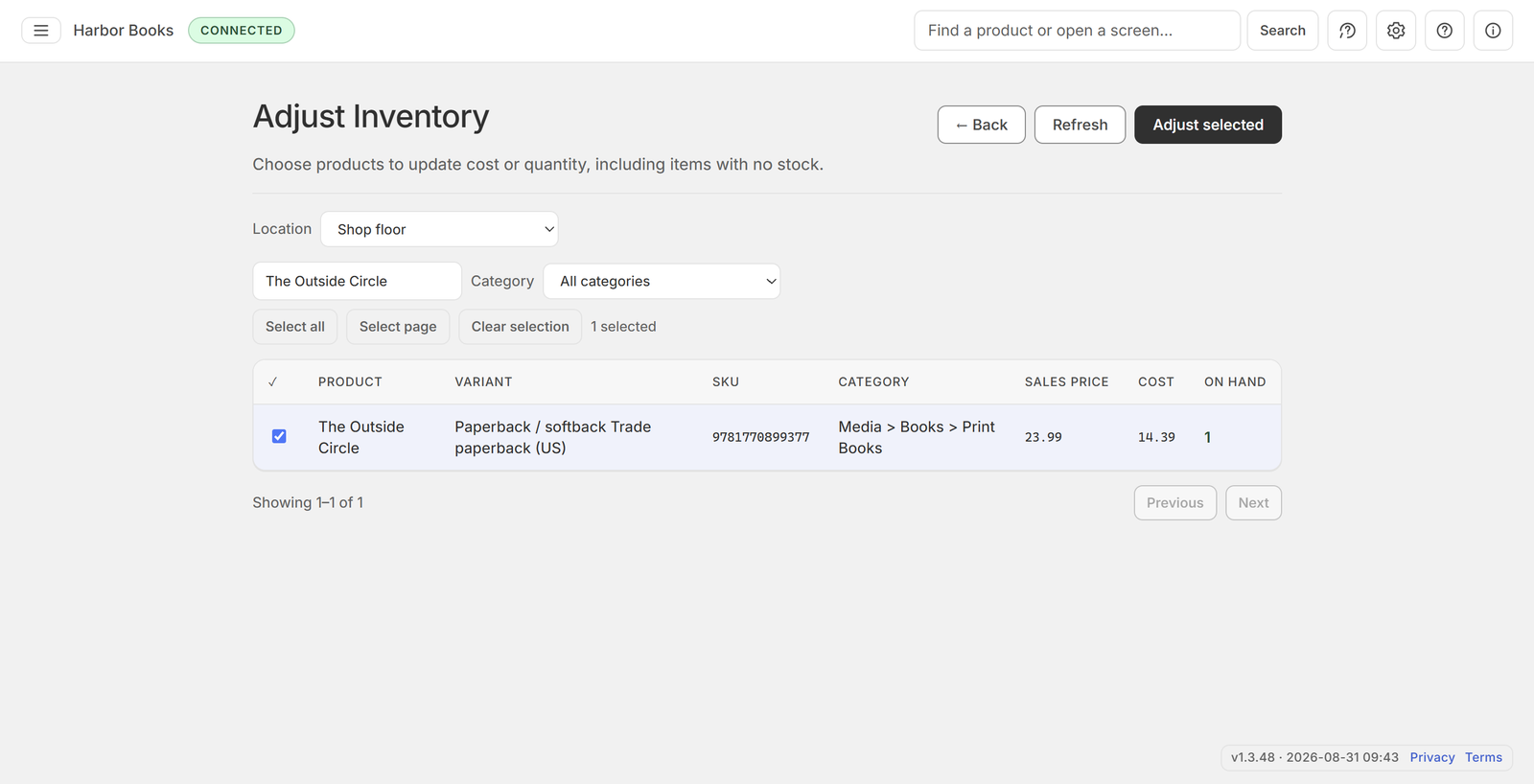
Search or filter, then select the products to adjust. Items with no stock still appear. Products that do not track inventory are not listed. Choose Adjust selected.
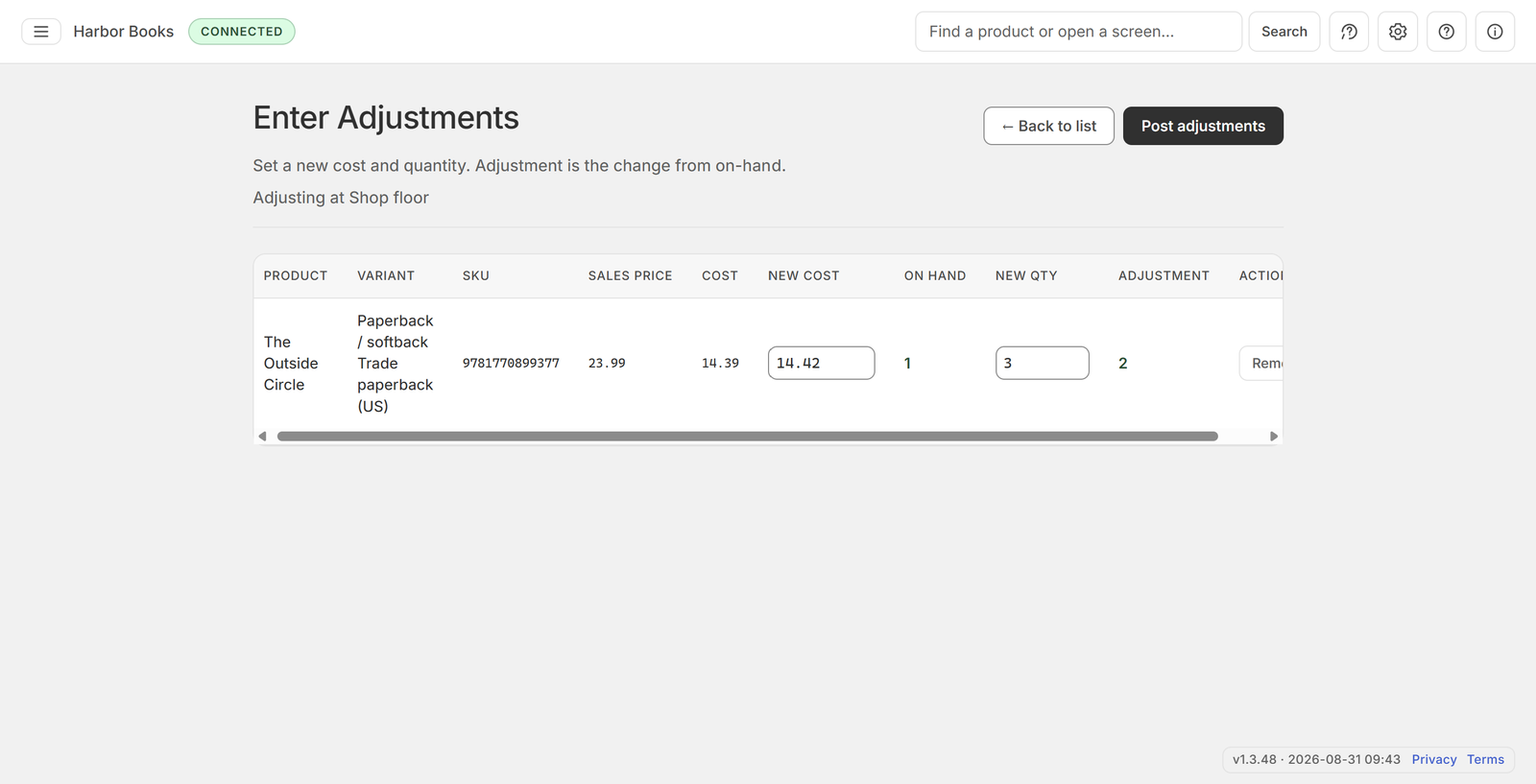
Type the new quantity, cost, or both. Remove a row if it should not be adjusted.
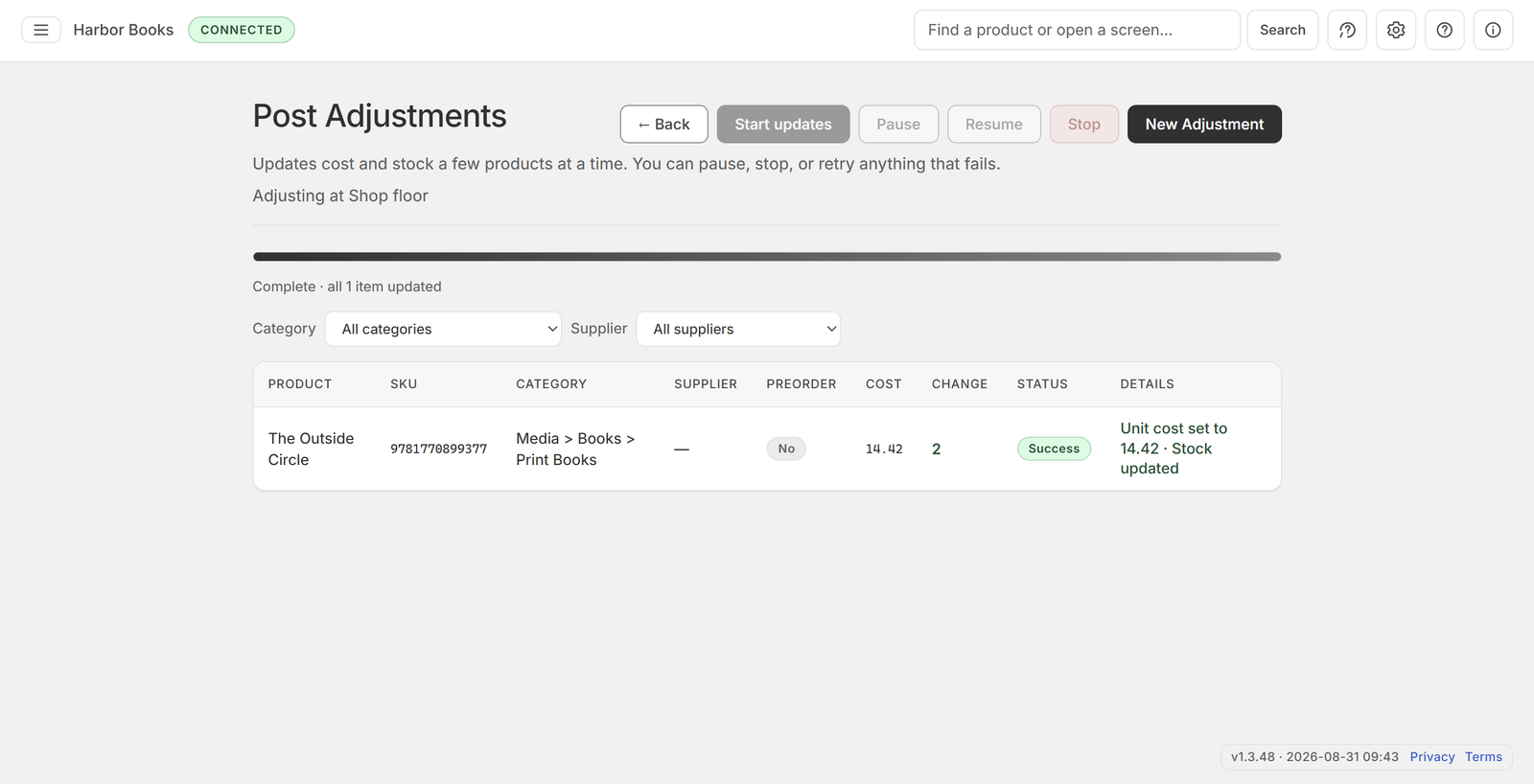
Choose Post adjustments, then Start updates. Wait until it finishes before you leave.
Move stock from one location to another — from start to finish.
Your product list loads from Shopify. Wait until items appear, then continue.
Pick the source location and the destination location.
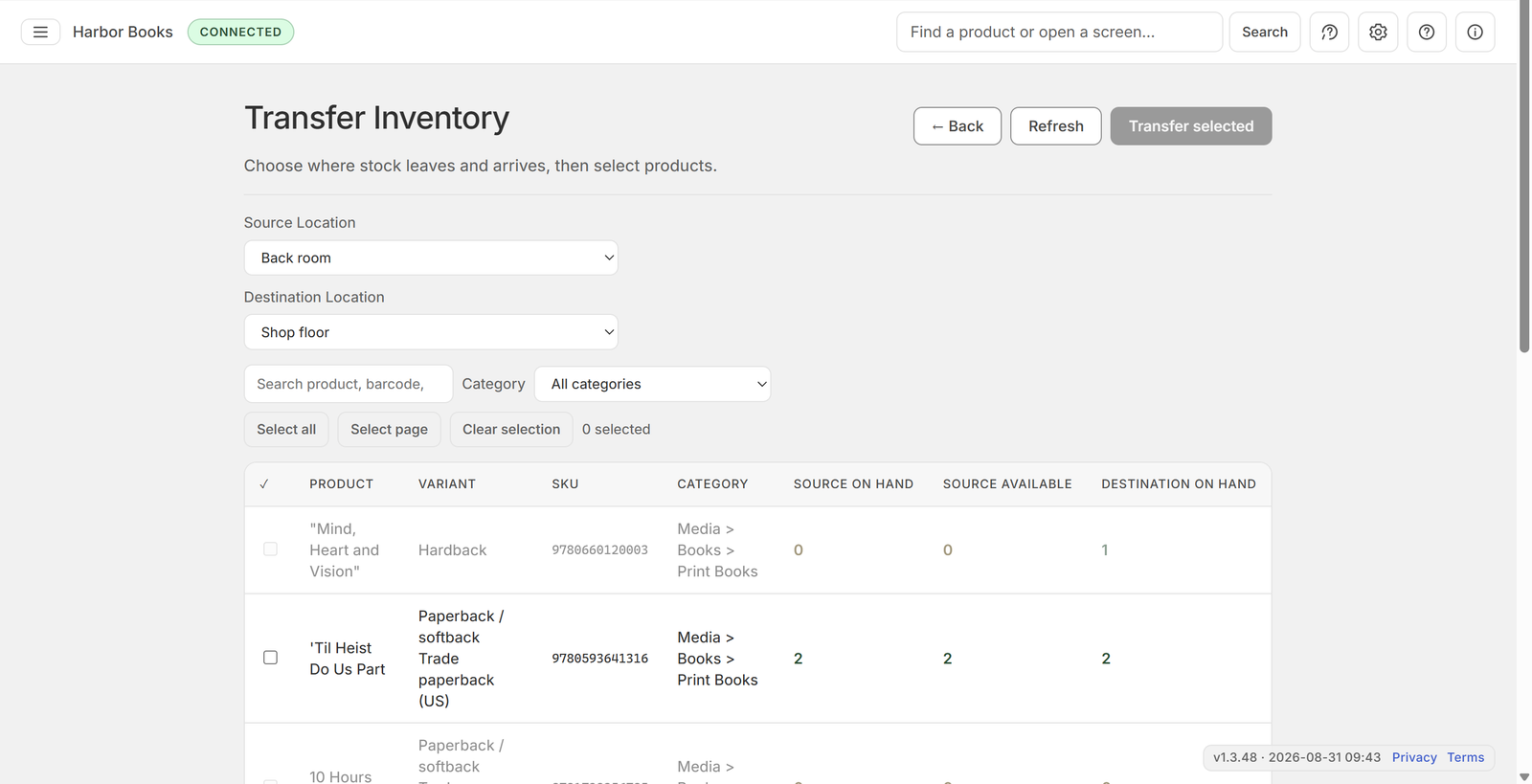
Search or filter, then select products with stock at the source. Choose Transfer selected.
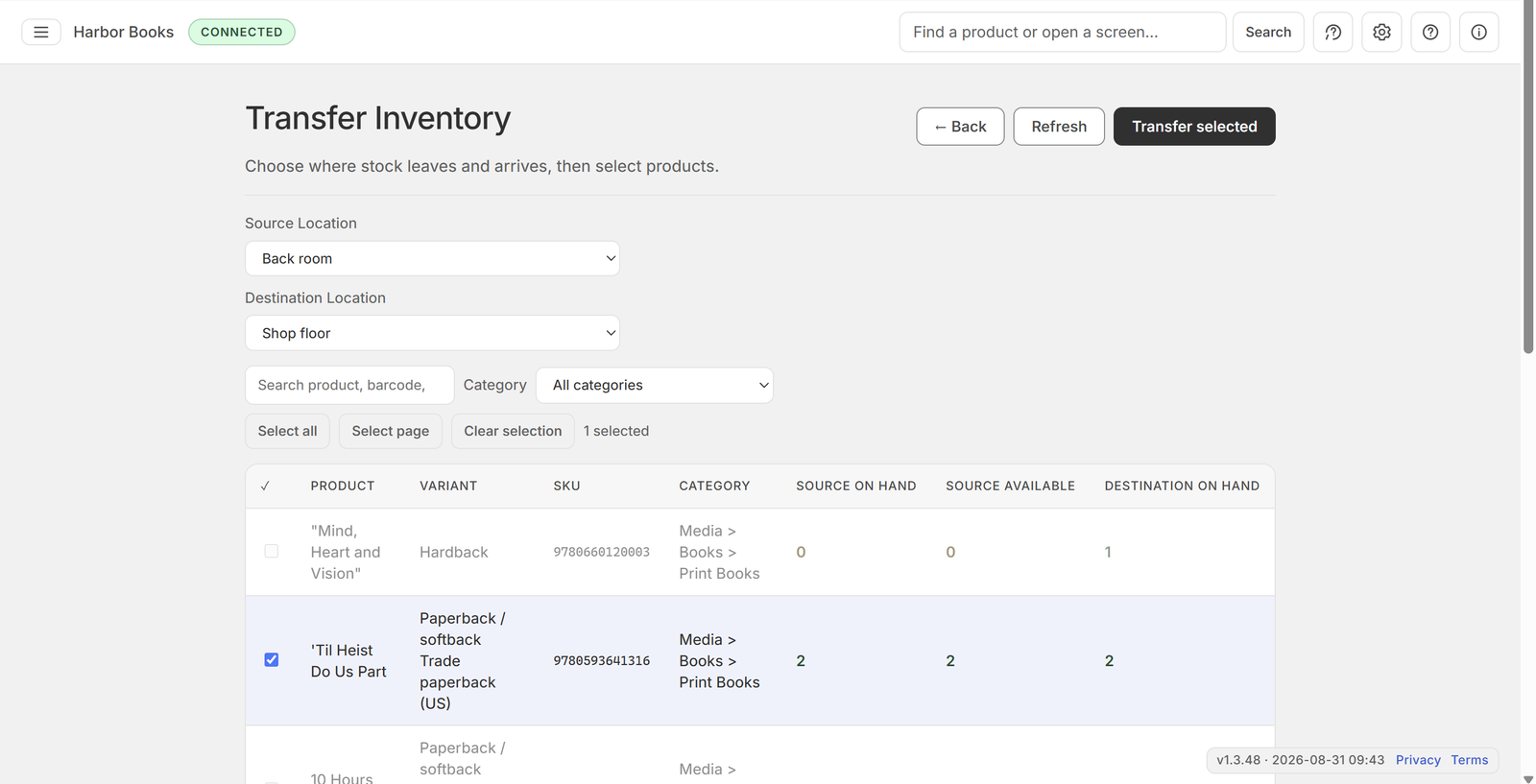
Type how many to move for each item. You cannot send more than is available at the source.
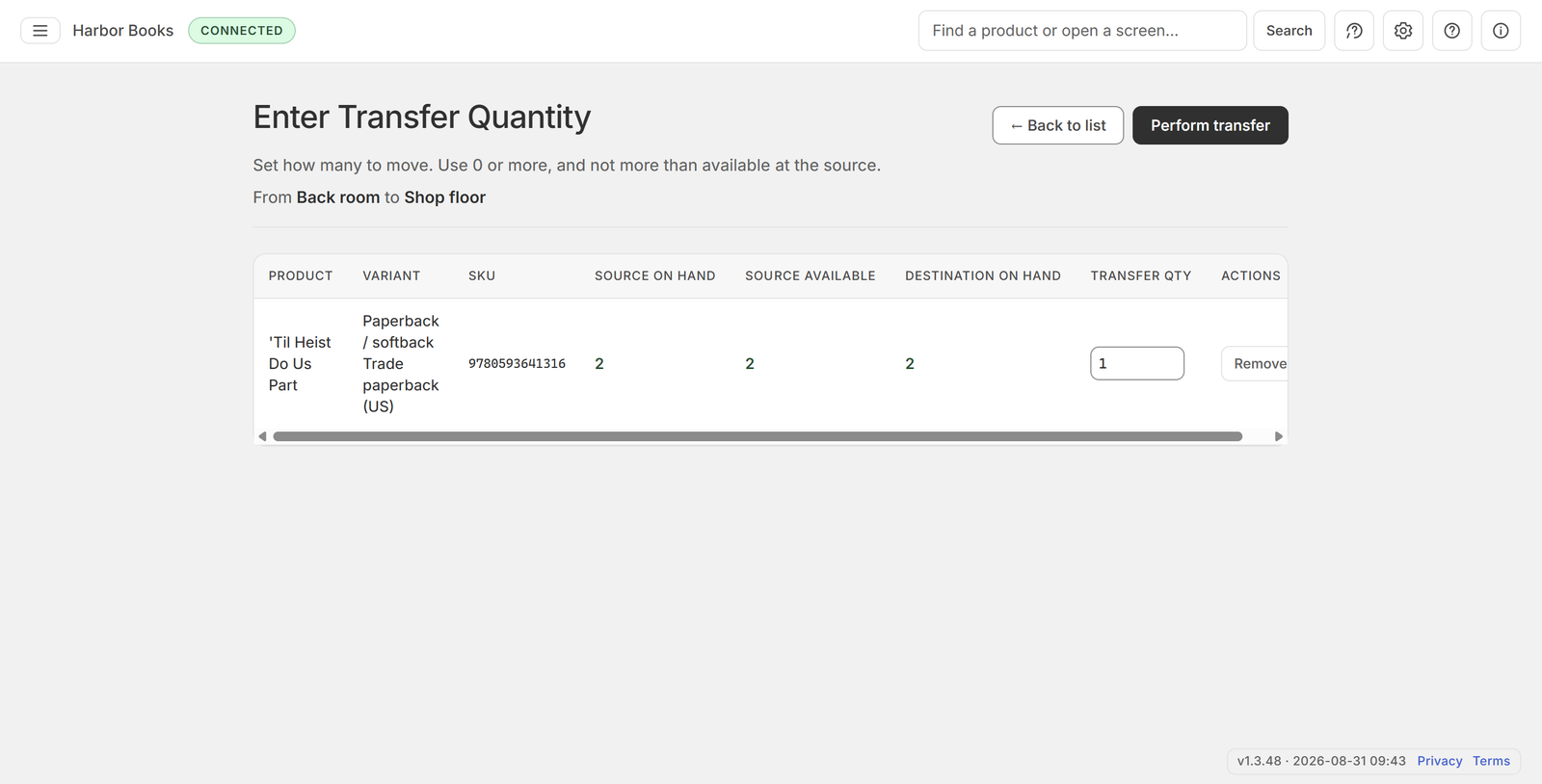
Choose Perform transfer, then Create transfer. Receive the stock later on Receive Inventory.
Look up a book by ISBN, title, or author.
Needs Book Management and BiblioShare. If results are missing, check the BiblioShare key in Configuration.
Scan or type an ISBN for the fastest match, or search by title or author.
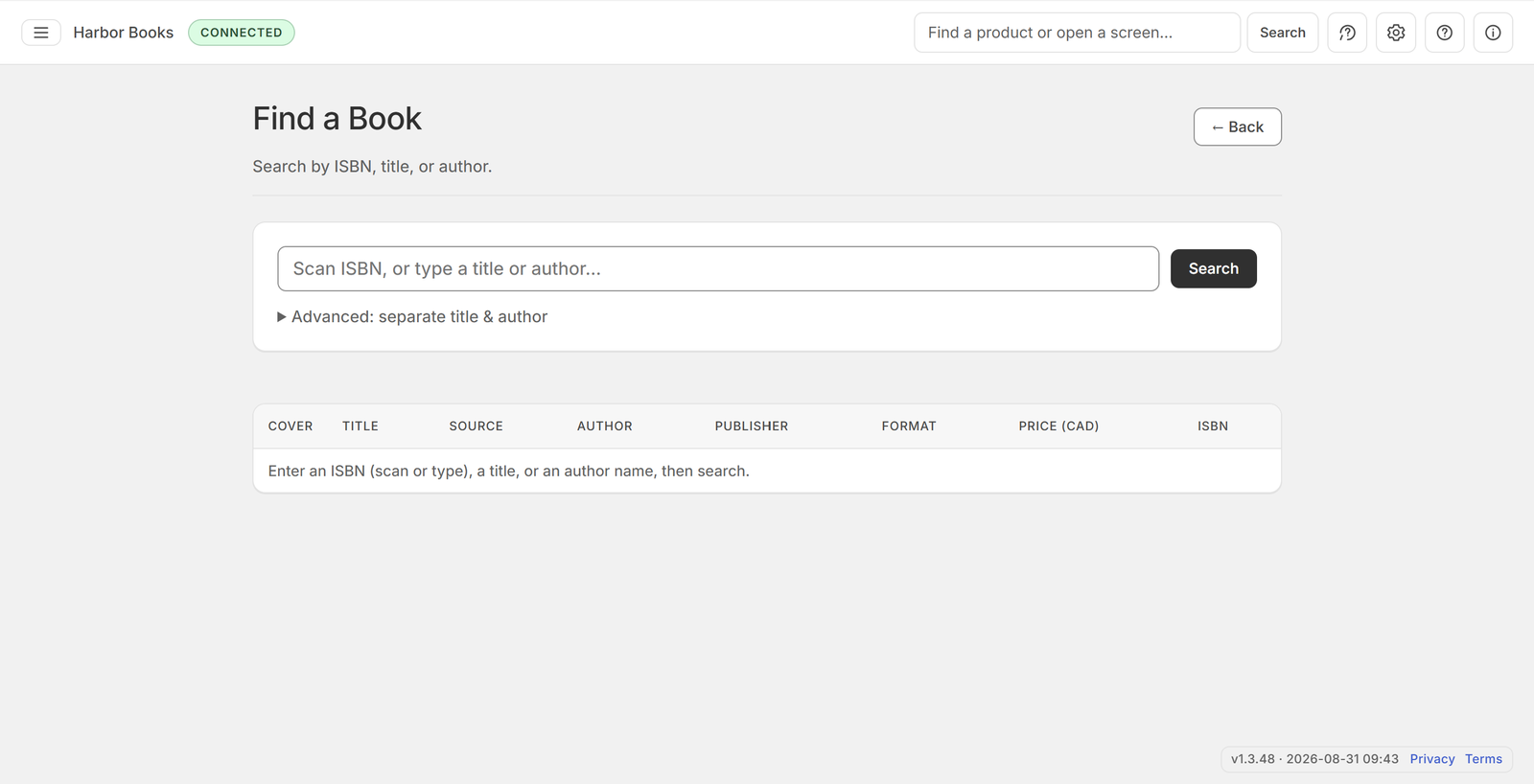
Check the results for the right title.
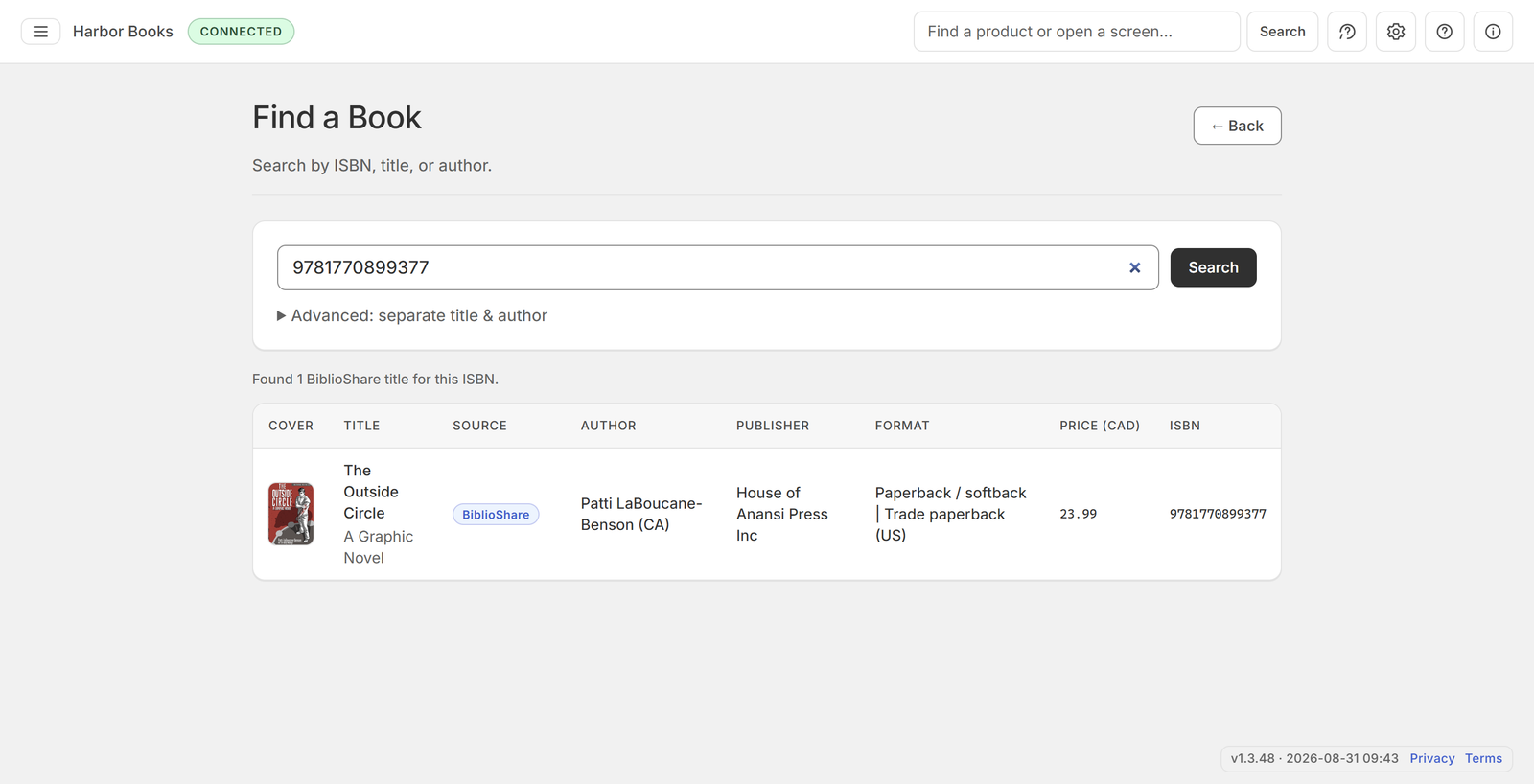
Open a result to confirm the edition.
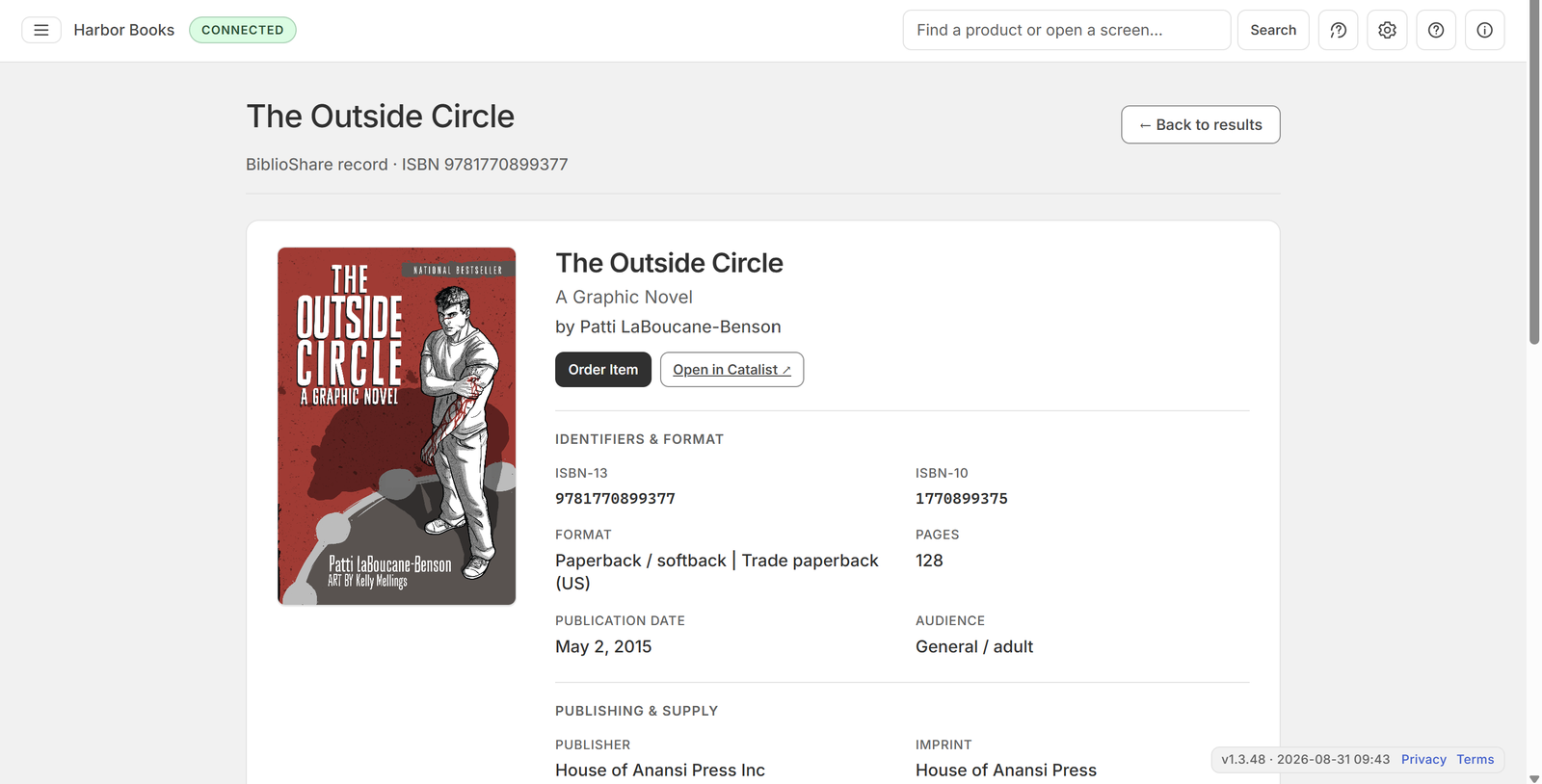
Build a book order, then you send it.
We don't email your vendor. This does not create a transfer to receive — receive is a separate location transfer.
Start a new order from Purchase Inventory.
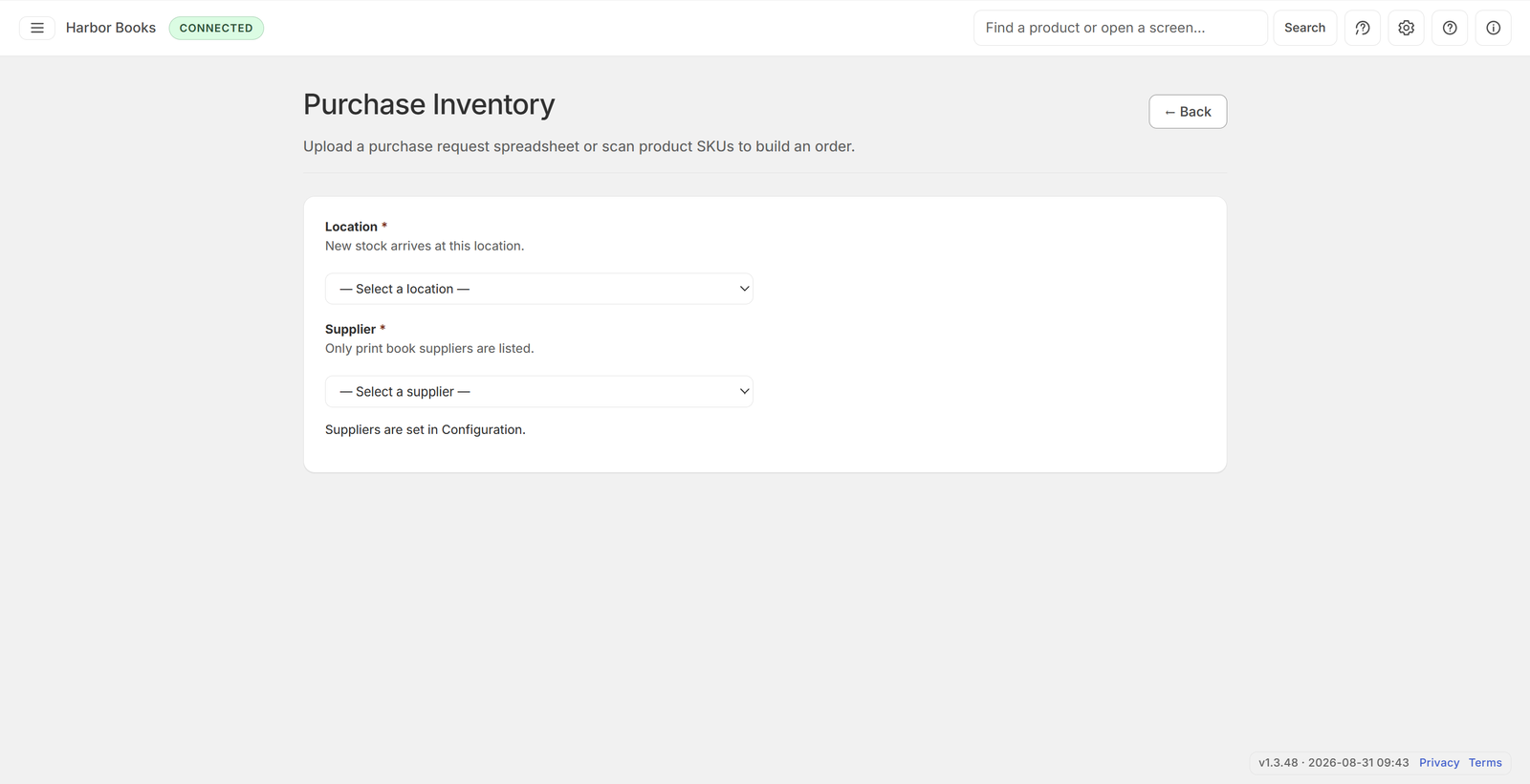
Choose the location and the supplier for this order.
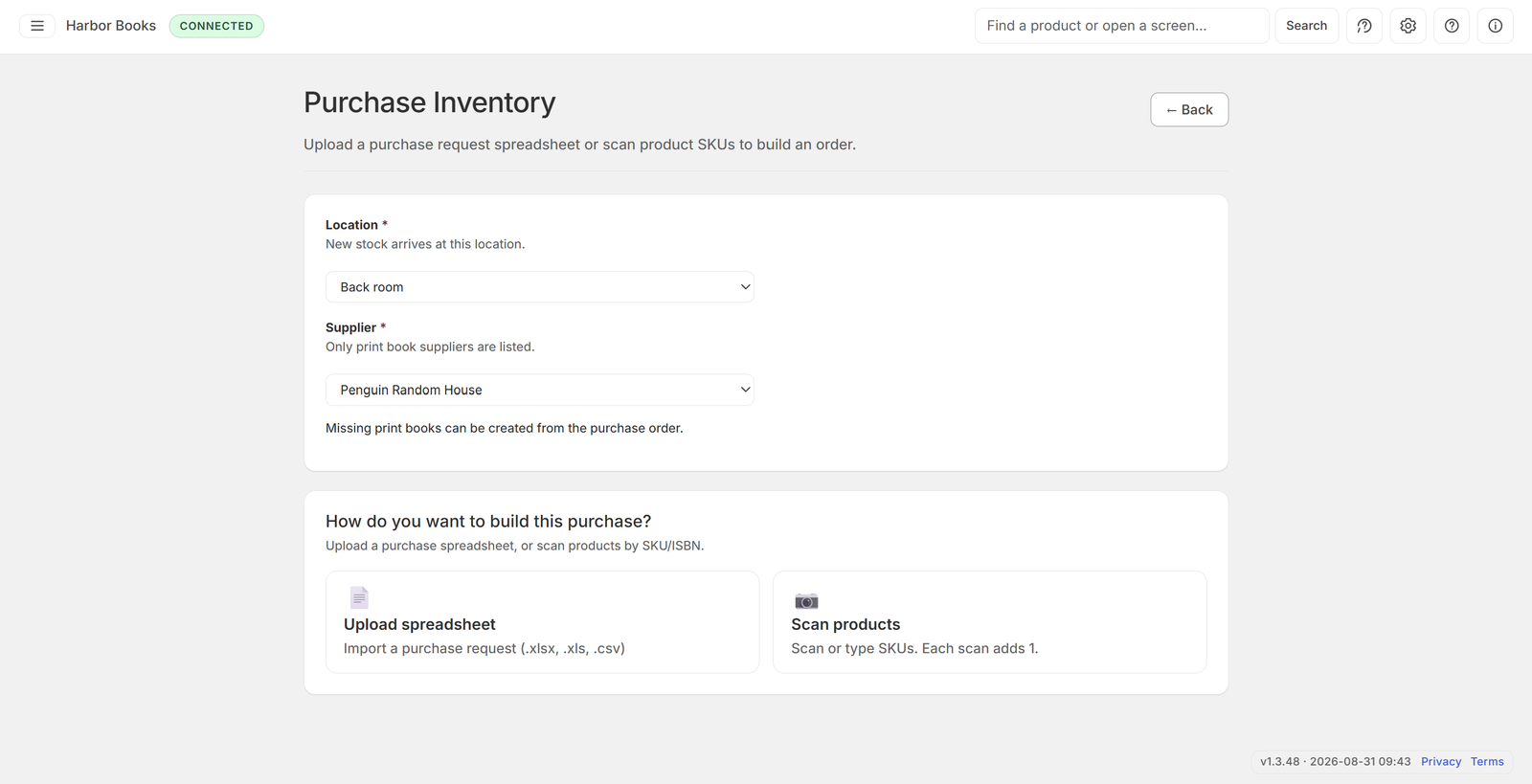
Upload a spreadsheet or scan SKUs.
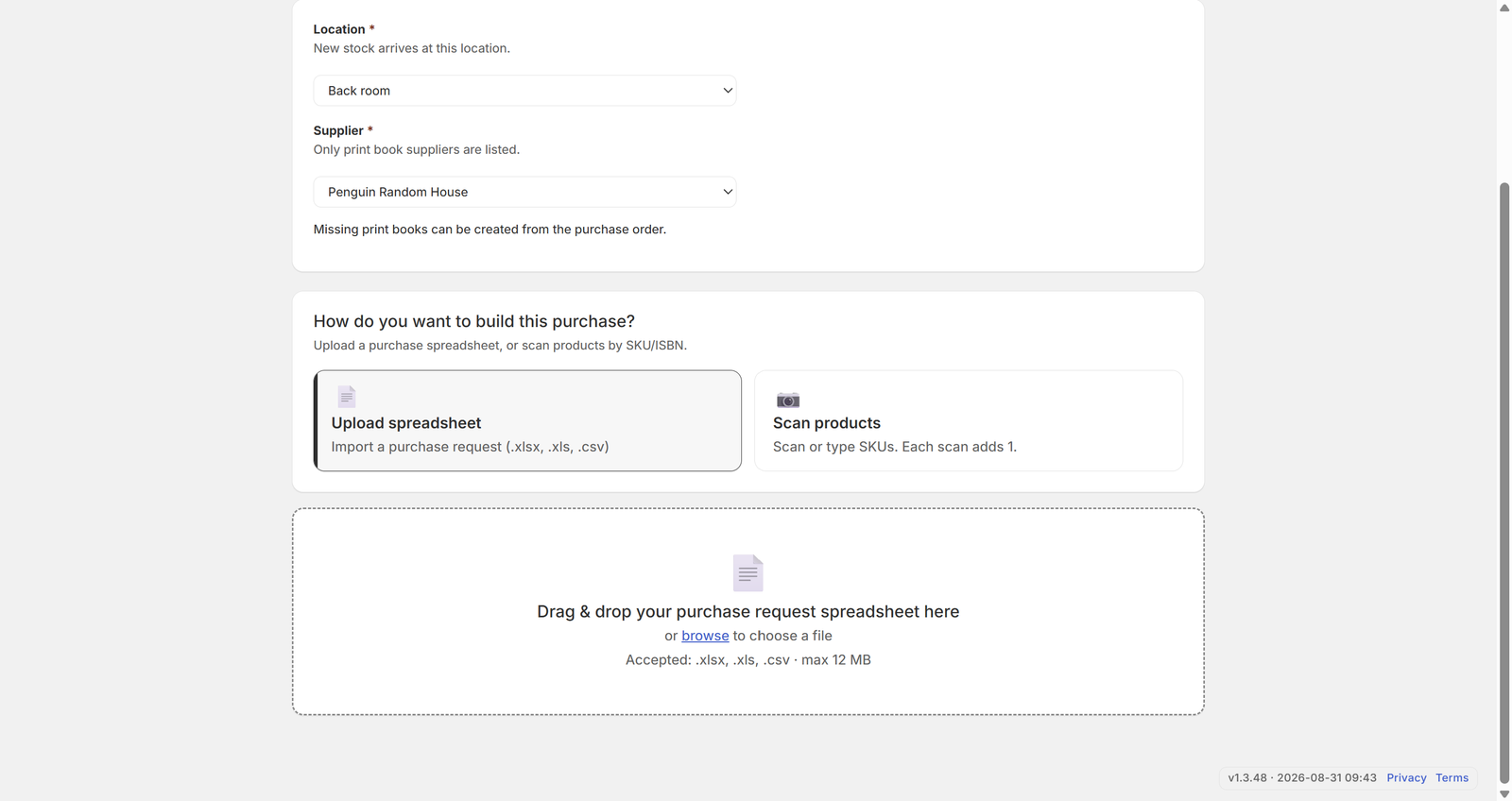
Check quantities and titles before you continue.
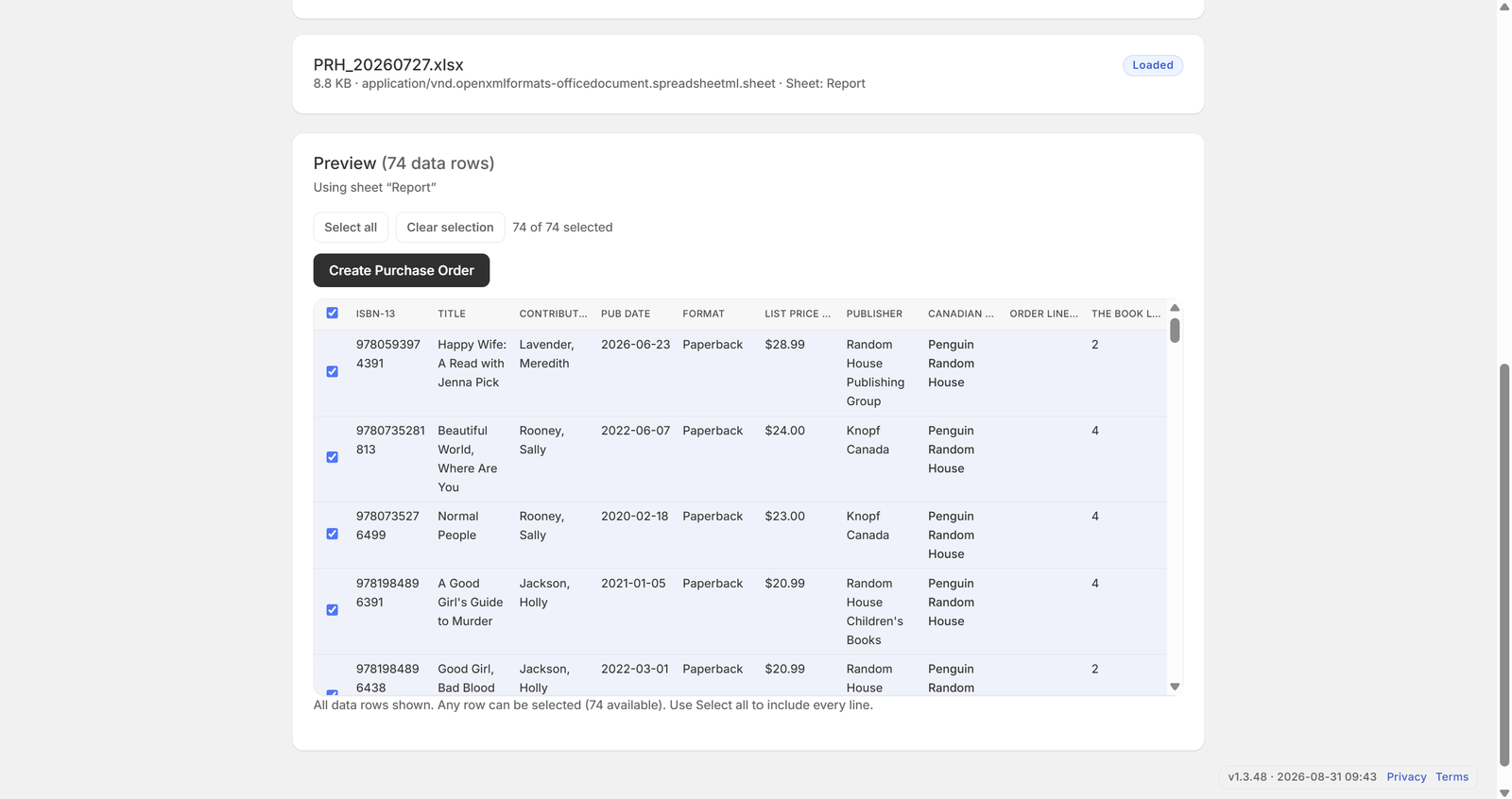
Continue. If titles are missing, create those products first.
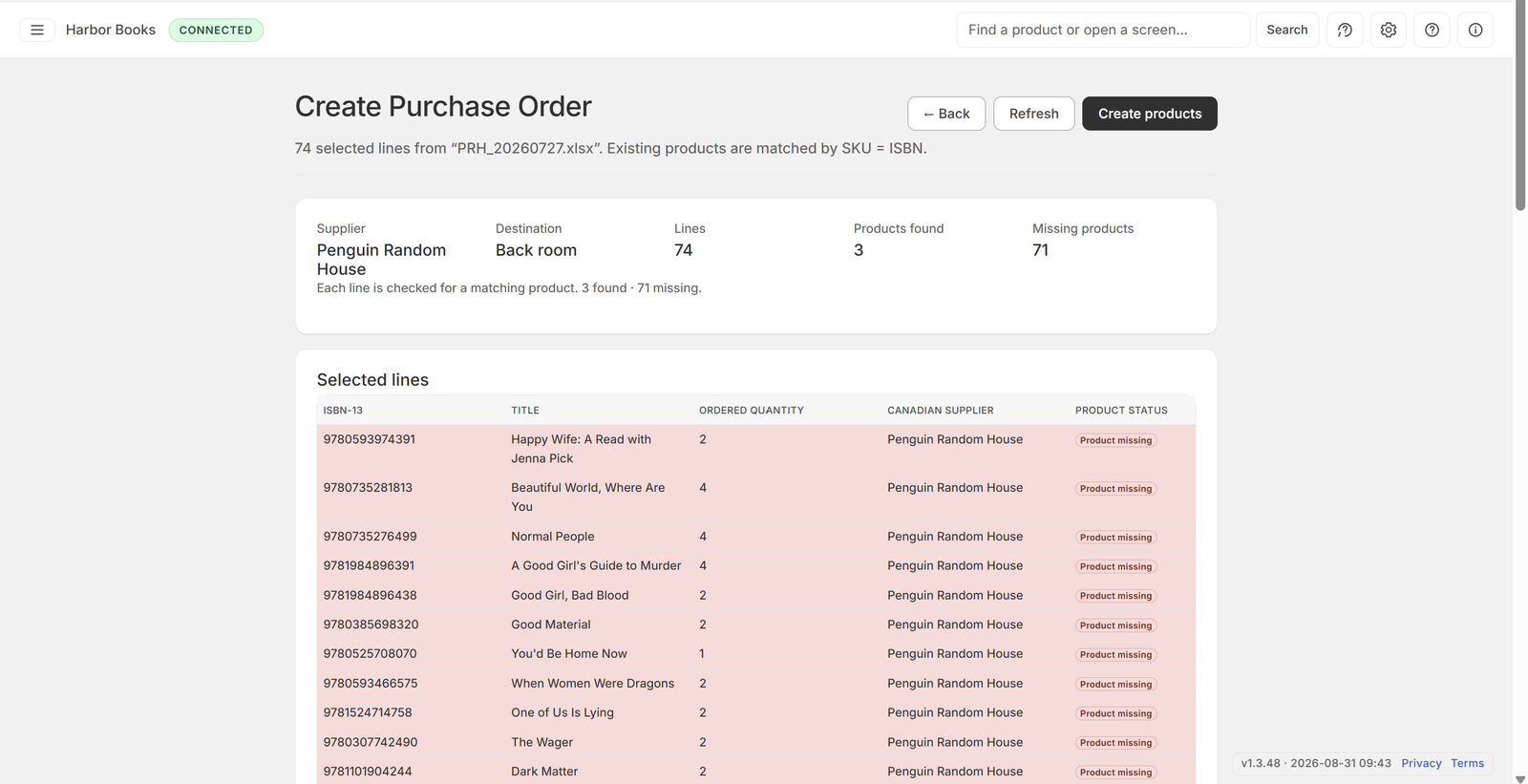
Create missing products, then return to the order.
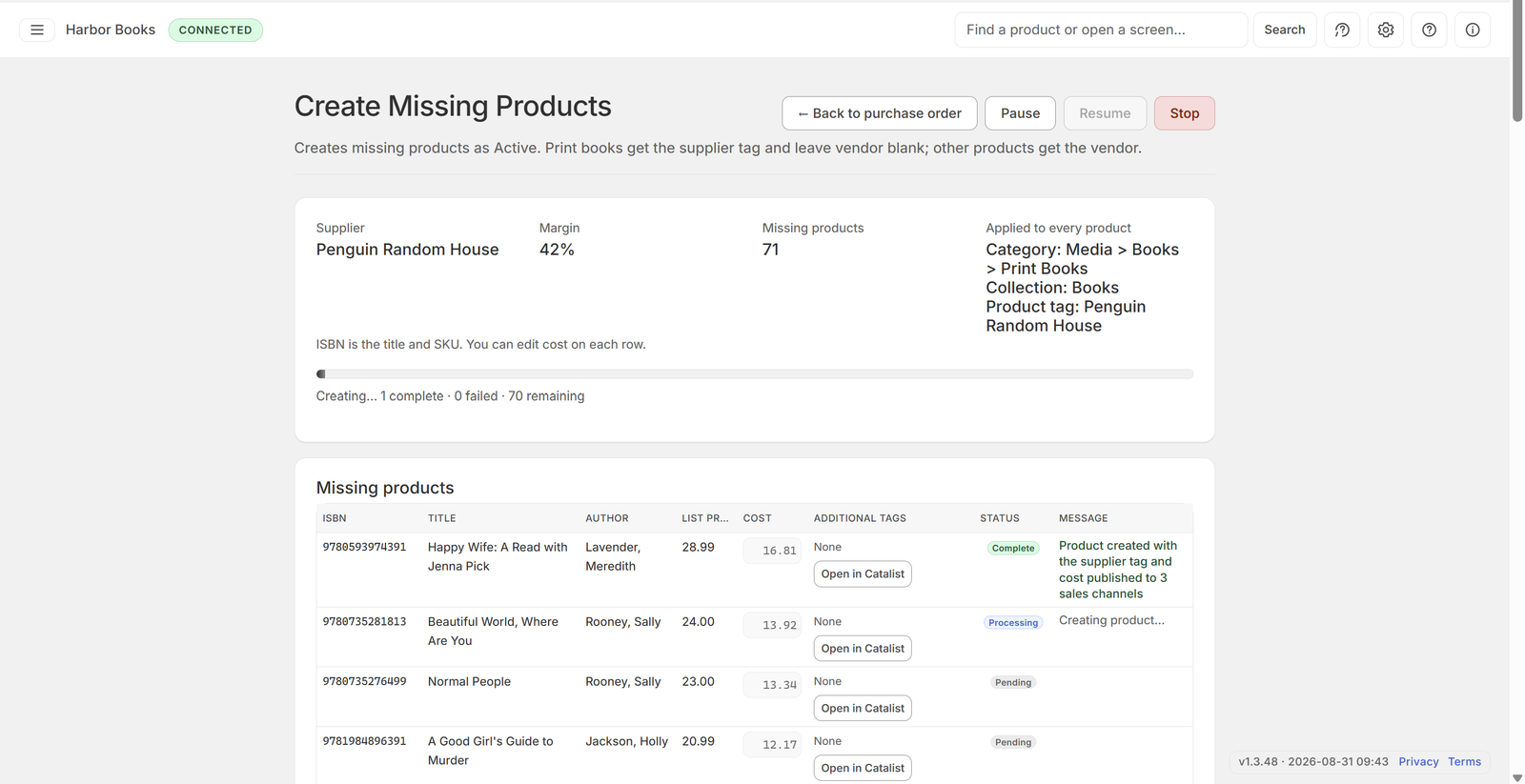
When every line has a product, continue.
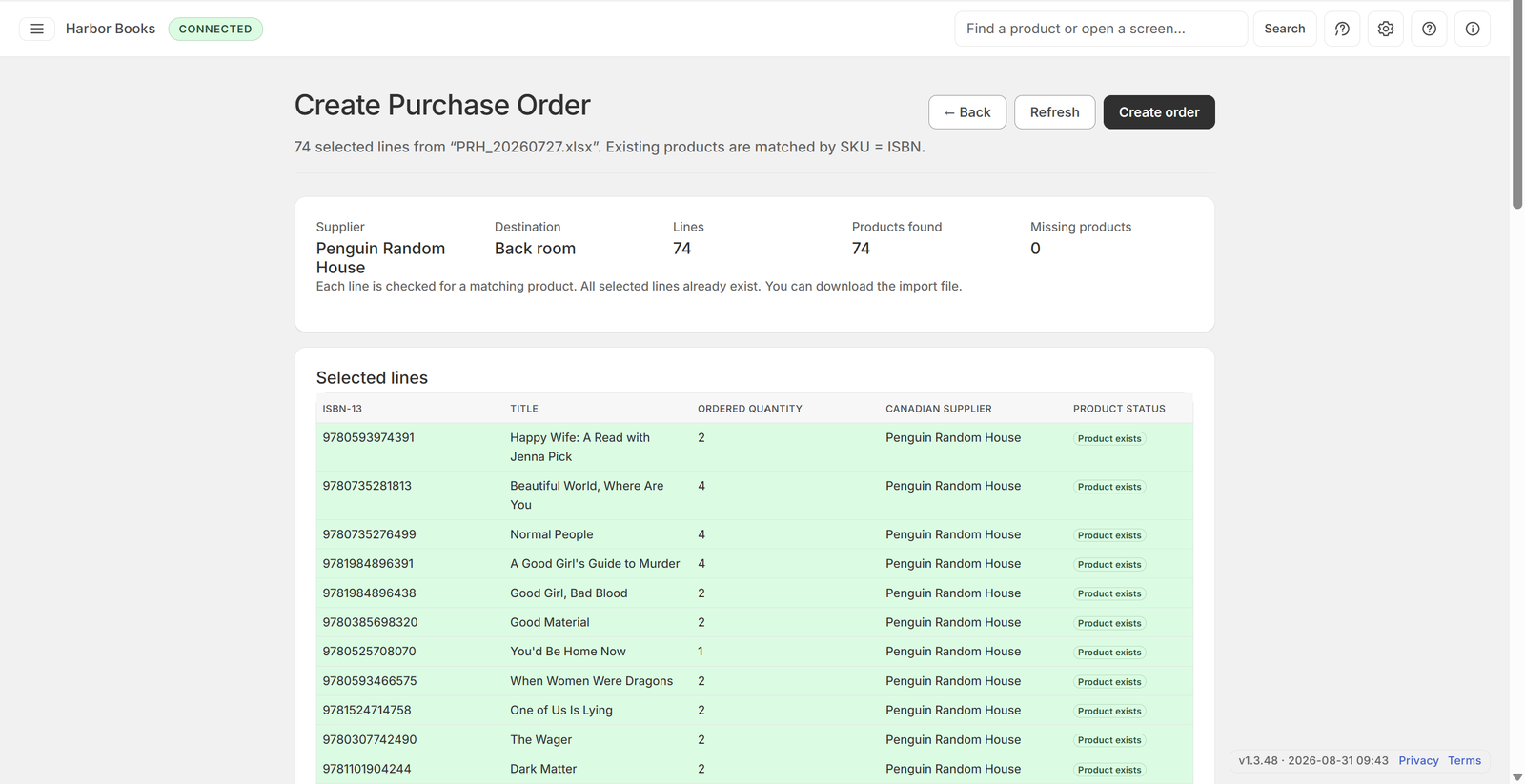
Check quantities and costs, then continue.
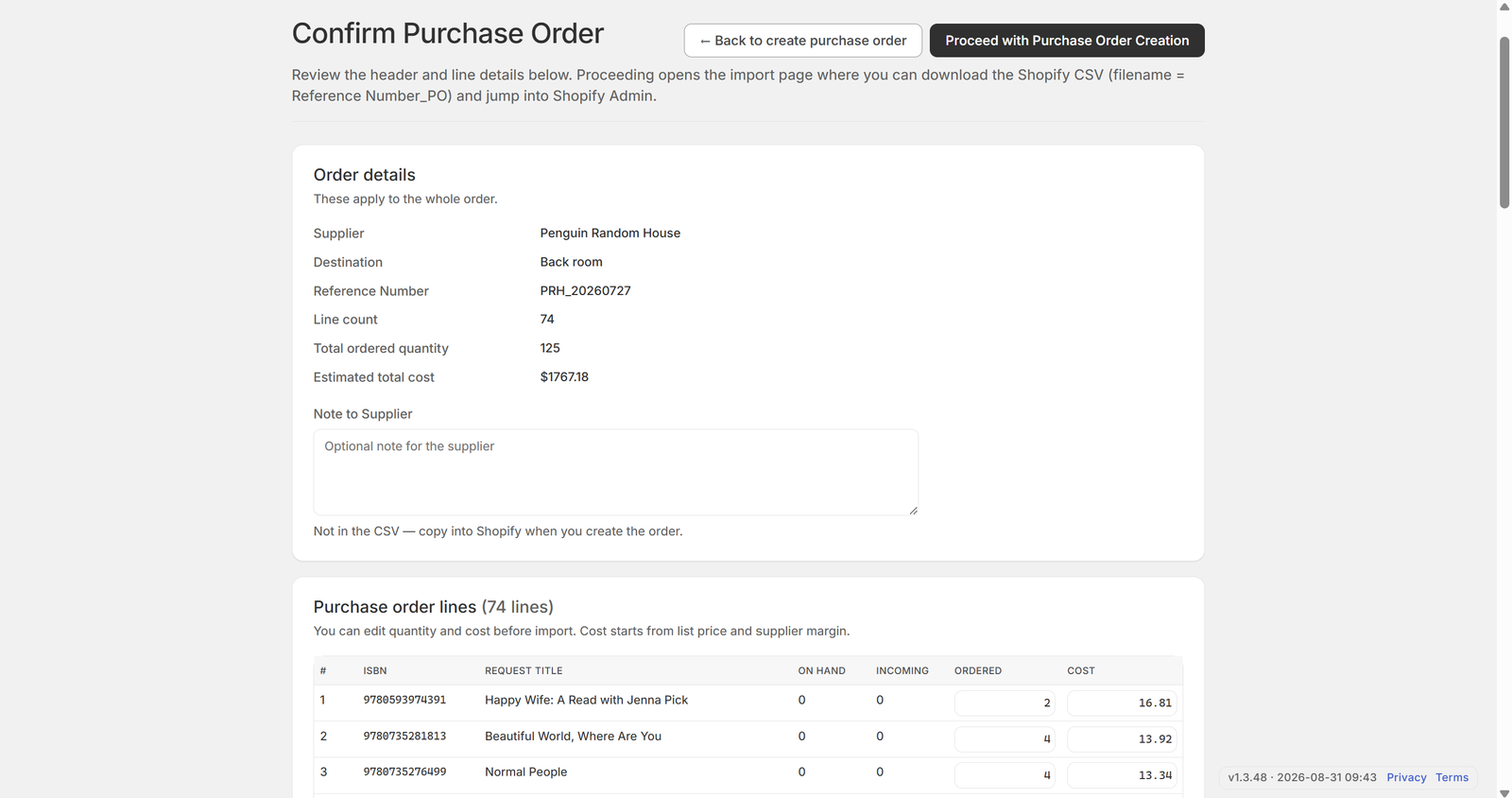
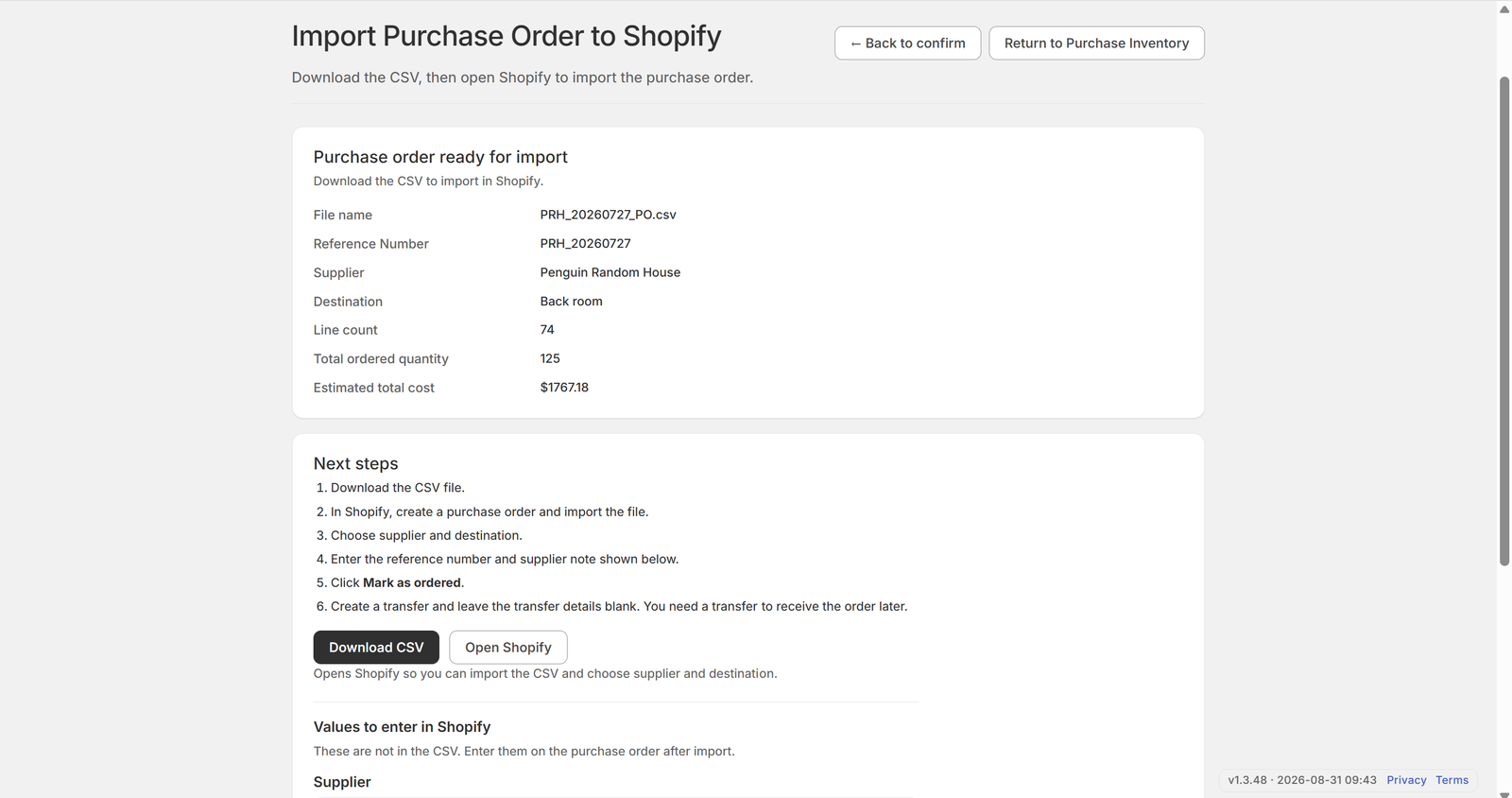
Download CSV and finish in Shopify Admin.
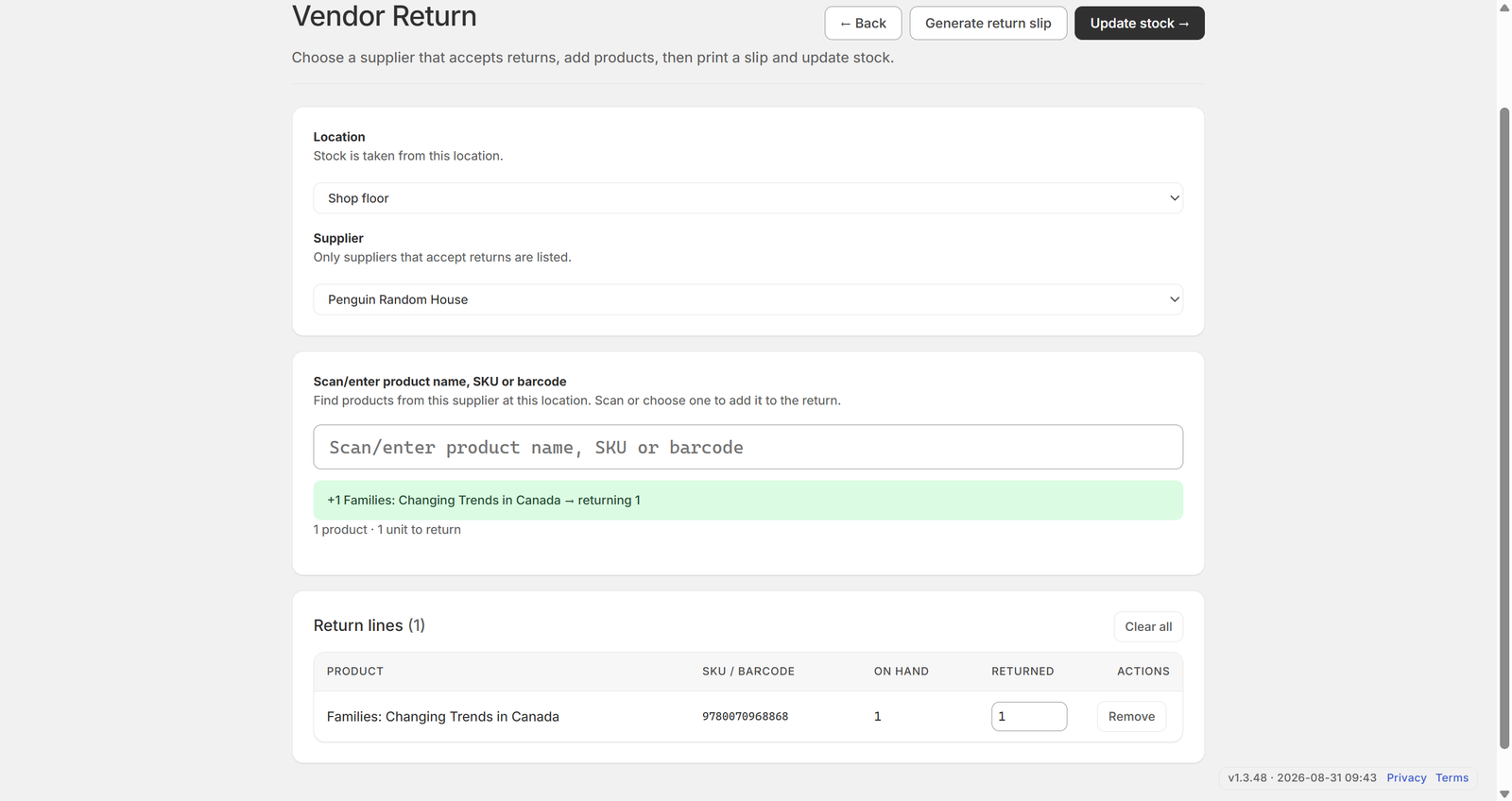
Build a return for a supplier that accepts returns.
You can skip this while getting started. It is not required to finish getting started.
Choose the supplier and the location the stock comes from.
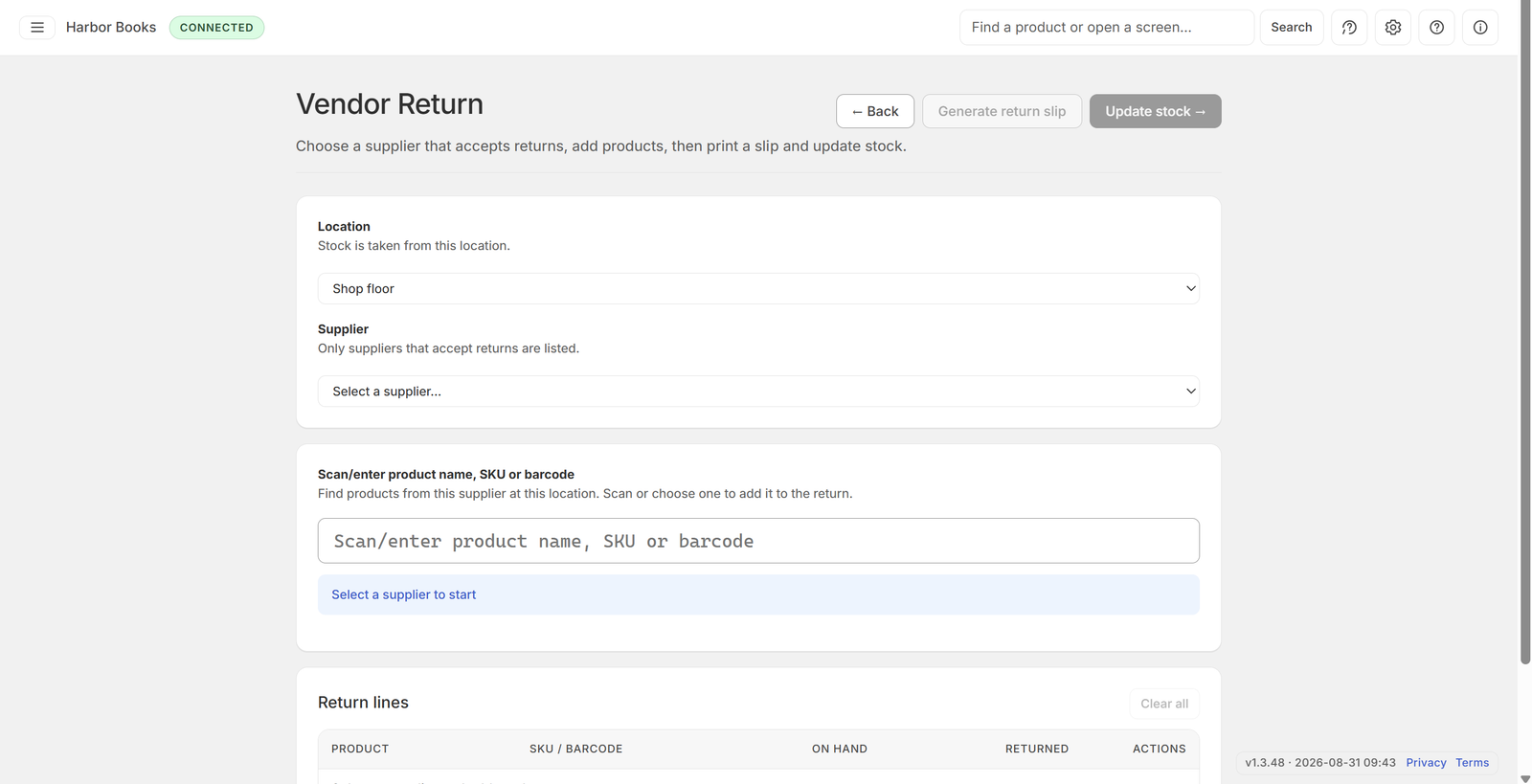
Scan or add the products you are sending back.
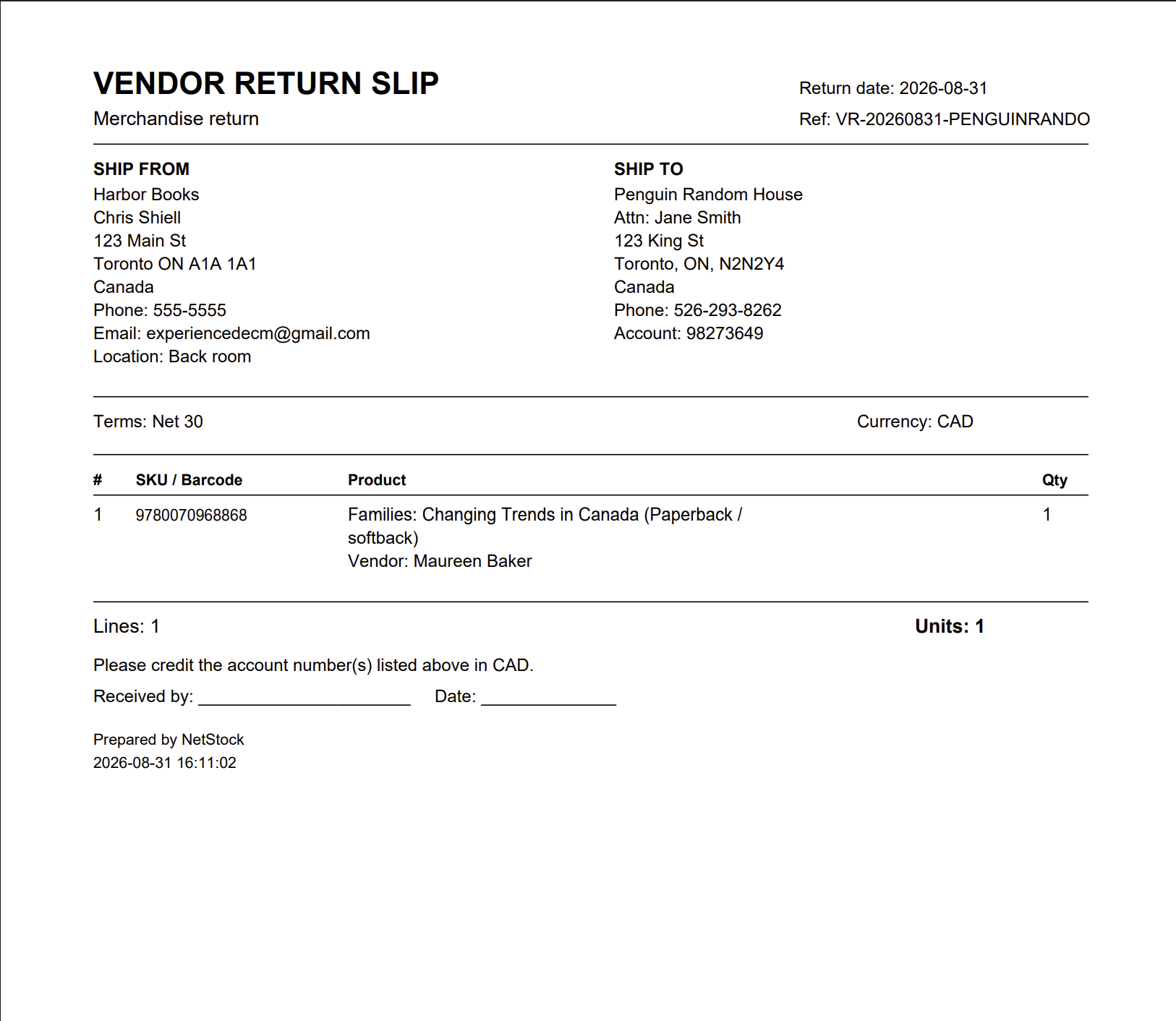
Print a slip if you need one.
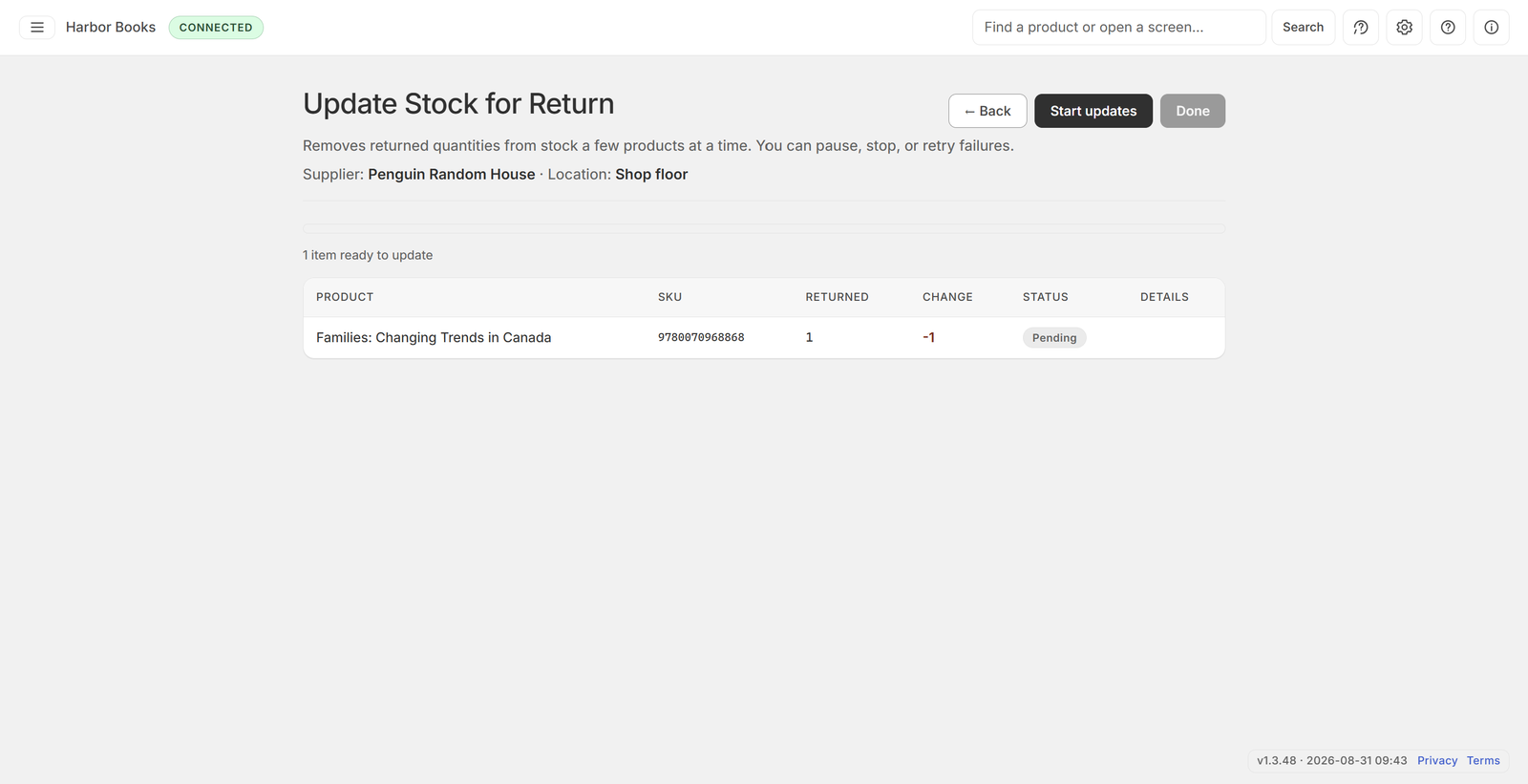
When you are ready, take those units out of on-hand.
Overview of stock levels. Click a card to see the products.
Overview of product status and missing details. Click a card to see the products.
Pick a plan to start using the app. Shopify bills the store each month.
When the trial ends, choose a plan and approve the charge in Shopify to keep using the app.
$24.99 / month
Count, receive, adjust, and plan stock.
Current plan
$34.99 / month
Everything in Full Inventory, plus book tools.
Current plan
$0.00 / month
Every feature, at no charge.
Current plan
Development and staging do not bill the store. Choosing a plan turns it on here.
Store settings, features, and connection. Save each section separately.
Shown in the top banner. Leave blank to show the connected store instead.
Optional. Add an address if you want NorthStock to reach you about getting started.
How many units the store can hold across all locations. The dashboard shows how full the store is and the value of current stock.
Choose the product tag that marks items as preorders. Leave blank if you do not sell preorders.
Show the Get started tab on the menu. Hide it once the store is set up.
How many days ahead to cover when suggesting an order quantity.
An item is low when on-hand is at or below this number.
Turn store features on or off.
Your current plan. Change plans to add or remove Book Management.
$24.99 / month
Count, receive, adjust, and plan stock.
Current plan
$34.99 / month
Everything in Full Inventory, plus book tools.
Current plan
$0.00 / month
Every feature, at no charge.
Current plan
Development and staging do not bill the store. Choosing a plan turns it on here.
Open this app from Shopify Admin to connect inventory.
Open this app from Shopify Admin to connect.
The category that marks a product as a book.
The collection used for books.
Turn this on if your store uses BiblioShare to look up books.
Add suppliers for margins and returns. Print book suppliers match product tags when Book Management is on.
| Supplier name | Type | Margin | Supports returns | Actions |
|---|
No suppliers yet. Add one below.
Product list
| Image | Product | SKU | Category | Supplier | Status | Sales price | Cost | On hand | Admin |
|---|
Details for the selected product.
Choose products to count, or continue a count already in progress.
| ✓ | Product | Variant | SKU | Category | Preorder | On hand |
|---|
Use this to find items you cannot scan, then edit the Counted column.
| Product | Variant | SKU | Category | Preorder | System | Counted |
|---|
Compare counted to on-hand. A blank count is 0. Edit Counted if needed, then update stock.
| Product | Variant | Tags | SKU | Category | Preorder | System | Counted | Change | Discrepancy | Actions |
|---|---|---|---|---|---|---|---|---|---|---|
| No counted items | ||||||||||
Updates stock a few products at a time. You can pause, stop, or retry anything that fails.
Ready
| Product | SKU | Category | Supplier | Preorder | Change | Status | Details |
|---|
Choose products to update cost or quantity, including items with no stock.
| ✓ | Product | Variant | SKU | Category | Sales price | Cost | On hand |
|---|
Set a new cost and quantity. Adjustment is the change from on-hand.
| Product | Variant | SKU | Sales price | Cost | New cost | On hand | New qty | Adjustment | Actions |
|---|---|---|---|---|---|---|---|---|---|
| No products selected | |||||||||
Updates cost and stock a few products at a time. You can pause, stop, or retry anything that fails.
Ready
| Product | SKU | Category | Supplier | Preorder | Cost | Change | Status | Details |
|---|
Choose where stock leaves and arrives, then select products.
| ✓ | Product | Variant | SKU | Category | Source on hand | Source available | Destination on hand |
|---|
Set how many to move. Use 0 or more, and not more than available at the source.
| Product | Variant | SKU | Source on hand | Source available | Destination on hand | Transfer qty | Actions |
|---|---|---|---|---|---|---|---|
| No products selected | |||||||
Creates a transfer. Receive the stock on Receive Inventory when it arrives.
Ready
| Product | SKU | Category | Supplier | Transfer | Status | Details |
|---|
Products that still need a cost. Edit margin or cost, then select items to save.
| ✓ | Product | SKU | Category | Supplier | Status | Sales price | Margin % | Cost | On hand |
|---|
Saves the cost for each selected product a few at a time. You can pause, stop, or retry anything that fails.
Ready
| Product | SKU | Category | Supplier | Sales price | Margin | Cost | Status | Details |
|---|
Products with no category. Select some, then apply a category.
| ✓ | Product | SKU | Supplier | Status | On hand |
|---|
Choose a category. Other product details stay the same.
For print books, choose Media > Books > Print Books.
Applies the category a few products at a time. You can pause, stop, or retry anything that fails.
Ready
| Product | SKU | Supplier | New category | Status | Details |
|---|
Products marked with your preorder tag. Select the ones you want, then remove the tag.
| ✓ | Product | SKU | Category | Supplier | Status | On hand |
|---|
Removes the preorder tag a few products at a time. You can pause, stop, or retry anything that fails.
Ready
| Product | SKU | Category | Supplier | Status | Details |
|---|
Print books with no supplier. Select some, then choose a supplier.
| ✓ | Image | Product | SKU | Author | Distributor | Status | On hand |
|---|
Choose a supplier for the selected books.
Suppliers are set in Configuration. The chosen name is saved on the product.
Adds the supplier a few products at a time. You can pause, stop, or retry anything that fails.
Ready
| Product | SKU | Category | Supplier | Status | Details |
|---|
Print books not in the Books collection. Select some, then add them.
| ✓ | Image | Product | SKU | Category | Status | On hand |
|---|
Adds products to the Books collection a few at a time. You can pause, stop, or retry failures.
Ready
| Product | SKU | Category | Collection | Status | Details |
|---|
These products use an ISBN as the title and have no barcode. Repair creates a new product so book details can update.
| ✓ | Product | Status | On hand |
|---|
Fixes products a few at a time. You can pause, stop, or retry failures.
Ready
| Product | Status | Details |
|---|
Upload a purchase request spreadsheet or scan product SKUs to build an order.
New stock arrives at this location.
Only print book suppliers are listed.
Suppliers are set in Configuration.
Review selected lines and matching products.
Each line is checked for a matching product.
Review the details, then download the CSV and import it in Shopify.
These apply to the whole order.
Not in the CSV — copy into Shopify when you create the order.
You can edit quantity and cost before import. Cost starts from list price and supplier margin.
Download the CSV, then open Shopify to create the purchase order and import the file.
Download the CSV to import in Shopify.
Creates missing products as Active. Print books get the supplier tag and leave vendor blank; other products get the vendor.
ISBN is the title and SKU. You can edit cost on each row.
| ISBN | Title | Author | List price | Cost | Additional tags | Status | Message |
|---|
Search by ISBN, title, or author.
| Cover | Title | Source | Author | Publisher | Format | Price (CAD) | ISBN |
|---|---|---|---|---|---|---|---|
| Enter an ISBN (scan or type), a title, or an author name, then search. | |||||||
Book details
Scan a product to find transfers that still need it, then choose Receive.
Only transfers arriving here are listed.
Shows transfers that still need this product. Choose Receive, then scan again to add quantity.
| Created | Transfer | Purchase Order | Origin | Destination | Status | Remaining | Matched product | Actions |
|---|---|---|---|---|---|---|---|---|
| Load transfers to get started | ||||||||
Choose Receive on a transfer, then scan products on the next page.
What changed in each release.
Tally items as you unpack them.
Scan to add 1, or type a quantity. You can receive more than expected.
| Product | SKU / barcode | Expected | Already received | Remaining | Receiving now |
|---|---|---|---|---|---|
| Loading… | |||||
Choose a supplier that accepts returns, add products, then print a slip and update stock.
Stock is taken from this location.
Only suppliers that accept returns are listed.
Find products from this supplier at this location. Scan or choose one to add it to the return.
| Product | SKU / barcode | On hand | Returned | Actions |
|---|---|---|---|---|
| Select a supplier and add products | ||||
Removes returned quantities from stock a few products at a time. You can pause, stop, or retry failures.
Ready
| Product | SKU | Returned | Change | Status | Details |
|---|
What to order next. Counts recent sales and incoming stock.
Days of stock to keep: 30
| Product | SKU | Supplier | On hand | Incoming | Daily sales | Days left | Suggested order |
|---|
How many days current stock will last, based on recent sales.
| Product | SKU | On hand | Daily sales | Days left | Status |
|---|
Products at or below their stock threshold. Reorder before you run out.
Default threshold: 5
| Product | SKU | On hand | Threshold | Days left | Status | Actions |
|---|
Tell us what happened. We'll include your store details so we can help faster.
We emailed you a copy.